


Everyone asks, “How to fix slow MacBook?” because the Mac is slow and the task is frustrating. It still functions, but each click is a beat too slow. Apps take forever to launch and the spinning wheel is more than the cursor. For a machine which costs lakhs, it feels utterly unacceptable.
But a slow Mac is never a dying Mac. Most of the time it’s entirely fixable. You don’t have to arrange a service appointment, or reinstall everything from scratch to get it functioning properly again.
Why is my Mac running slow? In this article, we will walk you through what’s causing your Mac to run slow and the remedies you can do and how to speed up your Mac.
Why is my MacBook slow? Main causes of a slow MacBook
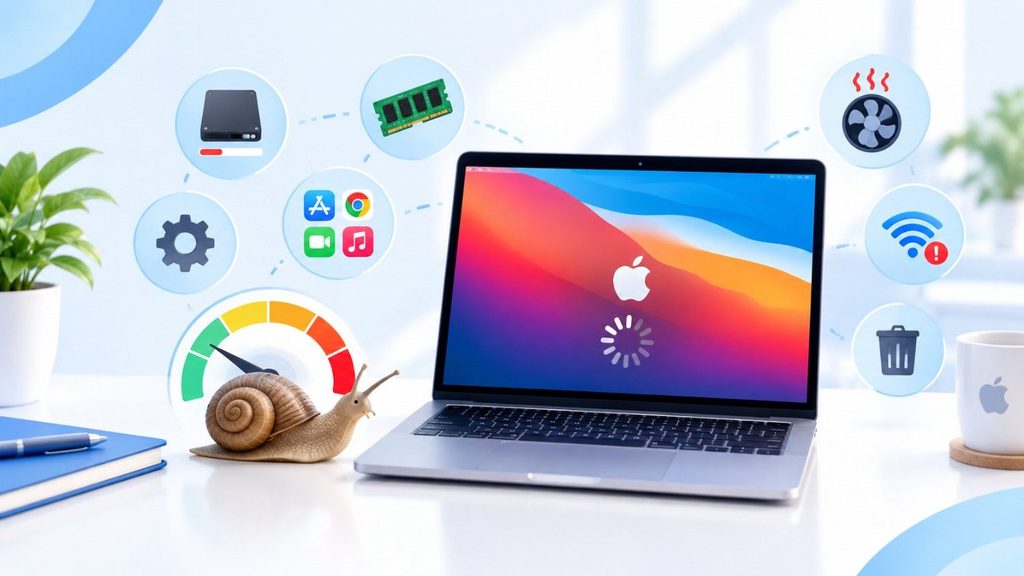
It’s good to know what you’re up against before getting into fixes. A slow MacBook typically happens because of one or more of these:
- Storage almost full – macOS needs free space to work; once the drive is over 85-90% full, performance will suffer noticeably
- Too many programs running in the background, quietly gobbling up RAM and CPU
- Login items that start automatically on startup – adds load before you have even opened anything
- Cache files accumulate over months of use
- An older version of macOS with unpatched performance bugs
- A badly-behaved rogue software that hogs resources
- On earlier Intel MacBooks, thermal throttling from dust build-up or damaged thermal paste
- Other typical Mac issues that impede performance
Follow these steps to speed up MacBooks
These step-by-step troubleshooting techniques can help you detect resource hogs, clear up RAM, and get your Mac back to speed.
Step 1 – Find Out What’s Actually Using Your Resources
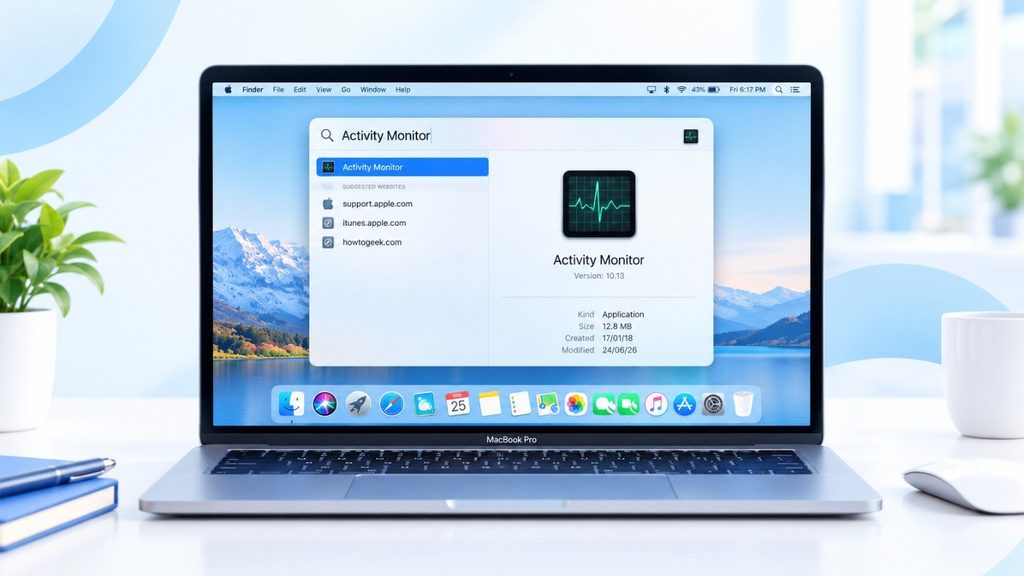
Before changing settings, try to determine what’s causing the slowdown. You can do this with a built in utility on Mac OS X.
Launch Activity Monitor – find it using Spotlight (Cmd + Space, then type “Activity Monitor”).
- Click the CPU tab and sort by % CPU (click the column header). If an app is routinely taking 80-100% CPU when you aren’t actively using the app, you have a problem
- Click the Memory tab and look at the Memory Pressure graph at the bottom. Green signifies you’re good.” Yellow implies you’re getting close. Red signifies your Mac is currently struggling for memory
- Click the Energy tab – good on laptops, tells you which apps are hitting your battery, and probably your CPU too
Step 2 – Free Up Storage Space
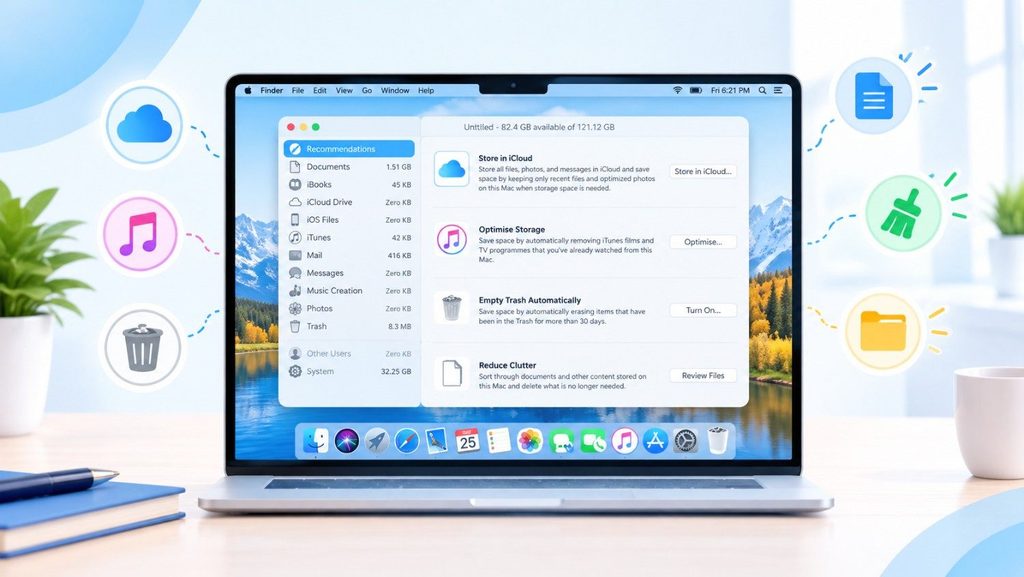
When people wonder, “Why is my MacBook slow? this is one of the easy repairs we propose first:
Go to Apple Menu > System Settings > General > Storage. Here’s a summary of what’s taking up space.
macOS likes to have about 10-15% of your disk free to run comfortably. If you are below that, then performance will suffer.
What to delete:
- Large files you don’t need – The Downloads folder is often filled of items you forgot about Duplicate photographs and movies – The photographs program features a Duplicates album (macOS Ventura and later) that finds them automatically
- Old iOS backups You may find these under System Settings → General → Storage → iPhone Backups
- Apps you haven’t used in months – be honest with yourself here
- Tools built into the system worth using:
Built-in tools worth using:
- Optimize Storage – automatically removes movies and shows you’ve viewed on Apple TV
- Empty Trash Automatically – automatically deletes items that have been in Trash for 30 days
Step 3 – Trim Your Login Items
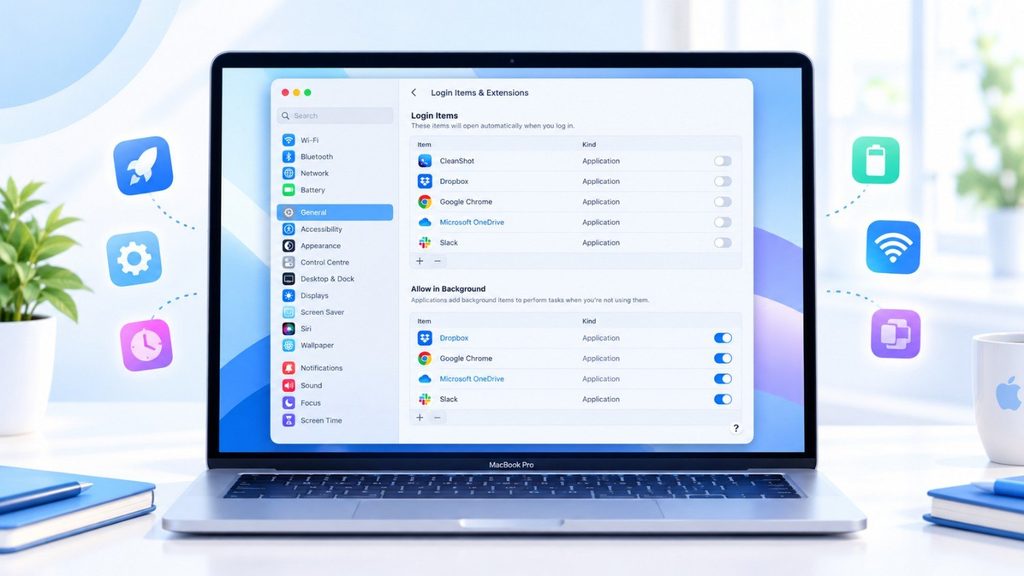
Every app that opens automatically when you start your Mac adds load before you’ve even begun working. This list expands over time without you even knowing it.
Apple Menu > System Settings → General → Login Items & Extensions
You’ll get two lists:
- Start upon Login — applications that open at boot time
- Allow in Background – programs that operate silently, without showing up in your dock
- Go through both and eliminate anything you don’t actually require at boot time.
Step 4 – Update the macOS
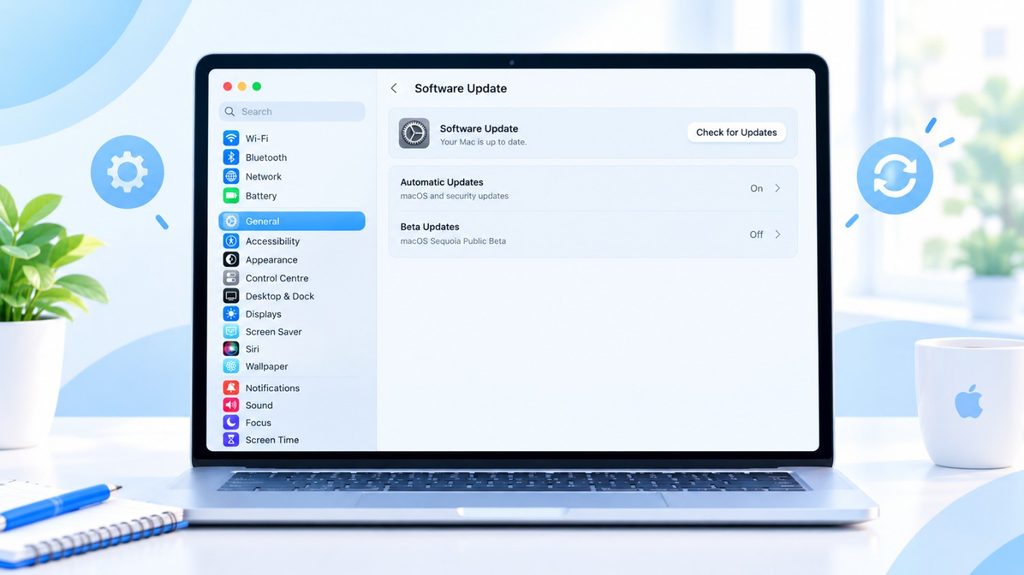
Surprisingly, an old macOS version is a regular cause of performance problems. Apple publishes updates on a regular basis that resolve memory leaks, issues with background processes, and efficiency enhancements specifically on Apple Silicon.
Apple Menu > System Settings > General > Software Update
If there is a new update, install it.
Step 5 – Clear your browser cache
If you experience the slowness particularly during browsing, then the cause is probably the cache of your browser. Over time, browsers can collect gigabytes of cached data, and a bloated cache actually slows down site loading instead of speeding things up.
Safari:
Open Safari → Settings → Advanced → Turn on Show features for web developers
Go to Develop in the navigation bar → Empty Caches Chrome:
- Hit Cmd + Shift + Delete
- Choose Cached pictures and files and Cookies
- Set the time range to All time → Clear data .
- While you’re here, see how many browser extensions you have installed. Each one adds overhead to every page loaded. Turn off anything you don’t use often.
Step 6 – Manage your desktop environment
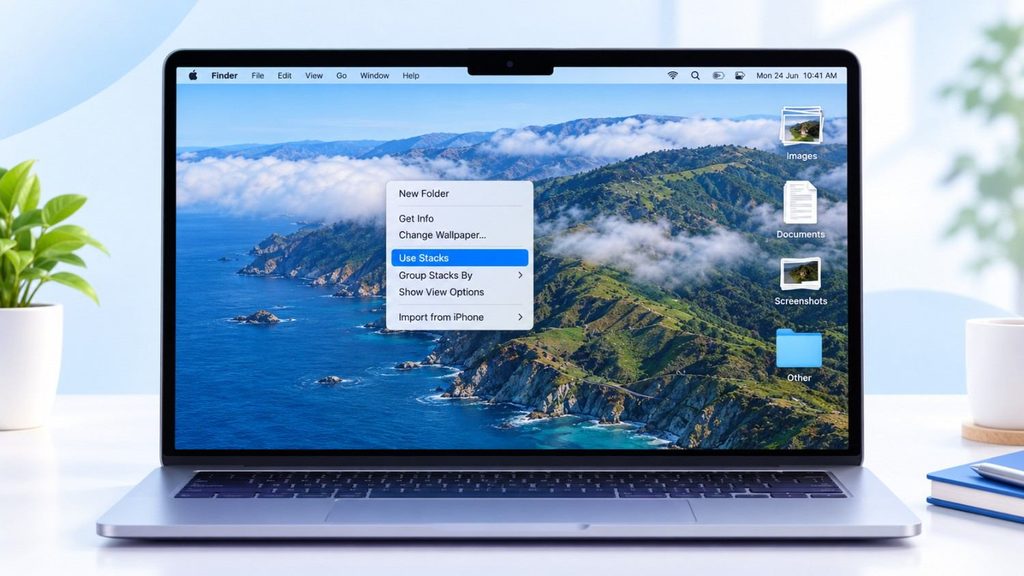
A busy desktop full of files, screenshots and folders can slow down macOS as the system has to render every icon on the desktop as a live window.
The fastest way to repair it is right click anywhere on the desktop → Use Stacks. This sorts everything into neat piles and organizes everything automatically.
You need a comprehensive clean-up. Get stuff off the desktop completely and into organized folders in Finder. Your desktop should ideally be empty, or almost empty.
Step 7 – Reset NVRAM (Intel Macs Only)
NVRAM contains system settings such as the resolution of the display, the startup disk, and some characteristics relevant to performance. Corruption of these can result in slow behavior.
- Power off your MacBook fully
- Turn it on and hold Option + Cmd + P + R straight away
- Hold for roughly 20 seconds – on older versions the starter chime will sound twice
- Let go and boot normally
The Two Big Changes in 2026
Rumor has it that Apple is working on two big improvements for the MacBook Pro in 2026:
- OLED Display Technology—moving from mini-LED to OLED screens
- The M6 Chip is the next generation of Apple Silicon processors.
Let’s look at what each upgrade means for users.
OLED Display Technology
The introduction of OLED screens could be the first big change. MacBook Pros have mini-LED screens, but OLED technology has a lot of benefits.
What is OLED? OLED is short for Organic Light-Emitting Diode. Each pixel in an OLED screen makes its own light, unlike older displays that need a backlight. This means that when a pixel needs to be black, it gets turned off.
Things you’ll notice that are good: These screens have deeper blacks, better contrast ratios, and use less power. The colors would be brighter, and the whole experience of watching would be much better. It would look more real than ever to watch movies or edit photos.
Since OLED screens are already common in iPhones and iPads, it makes sense for Apple to bring this technology to MacBooks next.
Read More: Your iPhone is About to Get Much Smarter With iOS 27.
Boost in M6 Chip For Performance
The second upgrade is Apple’s next-generation processor. The M6 chip is expected to be in the 2026 MacBook Pro models. It will be faster and better at managing energy than the M4 chips that are currently in use.
What makes the M6 special?, Apple makes its own chips just for Mac computers. Every new generation gets faster and works better. The M6 will probably have better graphics, more processing cores, and more advanced AI features.
How it works in the real world: This new processor should be better at handling tough jobs like editing videos, rendering 3D images, and making software. Along with better performance, users can expect longer battery life. Apps will open faster, and multitasking will be easier with MacBook Pro 2026
What This Means for Users
These two upgrades would make the MacBook Pro a better choice in the upper segment of the laptop. The OLED screen would be good for creative professionals who look for better color accuracy, and the M6 chip would be best for anyone who needs the most powerful laptop.