

Pairing AirPods with a MacBook Air is one of those things that should take about 30 seconds and usually does. Once they’re connected, you’re free from cables whether you’re on a video call, watching something, or just listening to music while you work.
That said, it doesn’t always go smoothly. Some people run into their AirPods refusing to connect, dropping the connection mid-session, or stubbornly staying paired to their iPhone instead of switching over to the Mac. Annoying, but almost always fixable.
Here’s everything you need to know — from the initial setup to sorting out the most common problems.
Why Bother Using AirPods With a MacBook Air?
Honestly, the convenience factor is hard to beat. You get clean wireless audio without fussing with dongles or cables, and if your Mac and iPhone share the same Apple ID, your AirPods will often just switch between devices on their own. For work calls and video meetings especially, the difference is noticeable.
Before You Start: A Few Things to Check
Bluetooth needs to be on. Head to System Settings → Bluetooth and make sure it’s enabled. Sounds obvious, but it’s easy to overlook.
Charge your AirPods. Pop them in the case and make sure there’s enough battery. A nearly dead pair sometimes won’t pair at all.
Same Apple ID? If your Mac and iPhone are both signed into the same account, there’s a good chance your AirPods will connect to your Mac automatically — no manual pairing needed.
How to Connect AirPods with MacBook Air
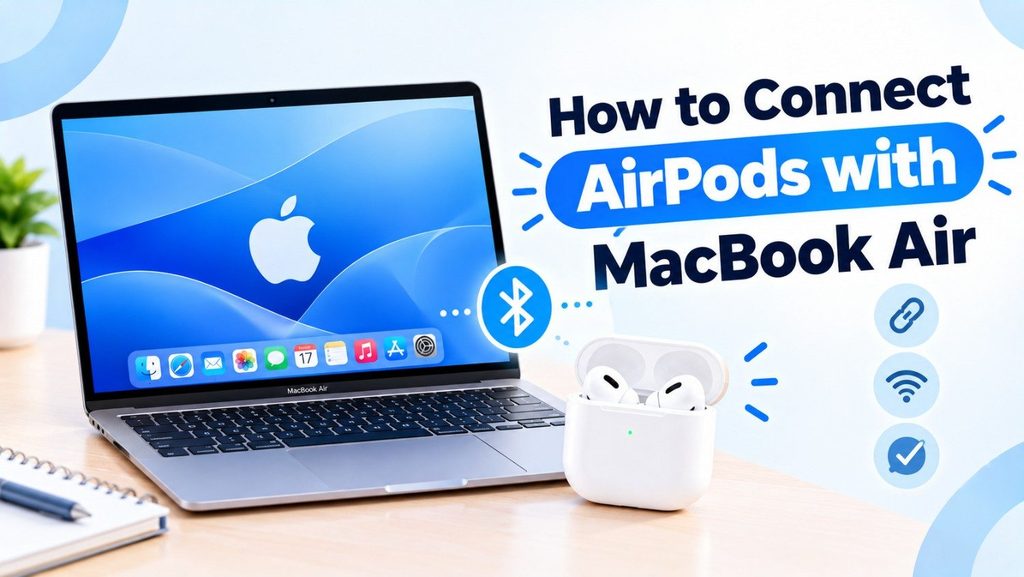
Step 1: Open Bluetooth Settings
Click the Apple menu, go to System Settings, then Bluetooth. Confirm it’s switched on.
Step 2: Put Your AirPods in Pairing Mode
The pairing method depends on your AirPods model. Follow the instructions for your specific device:
- AirPods 1, AirPods 2, AirPods 3, AirPods Pro 1, and AirPods Pro 2: Place both AirPods in the charging case and open the lid. Press and hold the setup button on the back of the case until the status light flashes white.
- AirPods 4 and AirPods Pro 3: Place the AirPods in their charging case and open the lid. Double-tap the front of the case until the status light flashes white.
- AirPods Max: Press and hold the listening mode button until the status light flashes white.
Once the status light flashes white, your AirPods are ready to pair with your MacBook Air.
Step 3: Connect AirPods to Your MacBook Air
- Open the Apple menu and select System Settings.
- Click Bluetooth and make sure Bluetooth is turned on.
- Find your AirPods in the list of nearby devices.
- Click Connect next to your AirPods.
Step 4: Finished
They will show up as Connected in a few seconds. That’s all.
Manually Changing Audio to Your AirPods
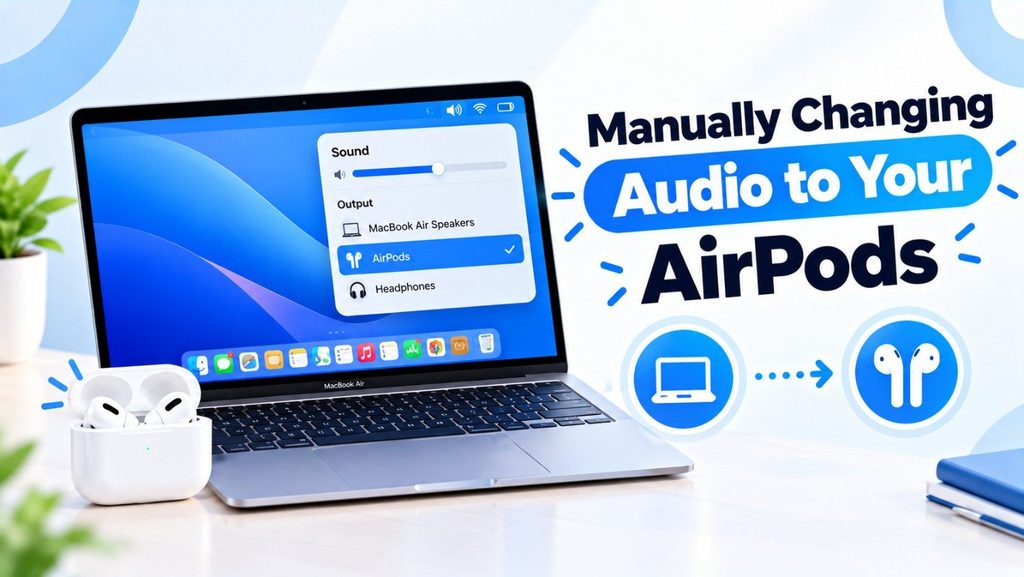
Sometimes your AirPods connect to your Mac, but the audio doesn’t automatically switch over to them—it keeps playing through your Mac’s speakers. Short answer:
Click on the Sound icon in the menu bar and choose your AirPods from the output list. Audio will be changed right away.
Fixing Common Connection Problems

AirPods Won’t Connect at All
Try toggling Bluetooth off and back on in System Settings. It sounds too simple, but it clears up a surprising number of issues.
If that doesn’t work, restart your MacBook Air. A fresh start often resolves whatever Bluetooth weirdness was going on underneath.
They Keep Connecting to the Wrong Device
This occurs when your AirPods default to your iPhone instead of your Mac. Open Bluetooth settings, tap the “i” next to your AirPods, tap Forget Device, and manually re-pair the AirPods with the above steps.
Nothing’s Working? Do a Full Reset
If you’ve done everything and they’re still acting up, resetting the AirPods typically does the trick:
- Place the AirPods in the case and close the lid for about 30 seconds.
- Open the lid and press the setup button on the back for about 15 seconds.
- Wait until the light flashes amber and then white.
- Begin pairing with your Mac again.
This will delete any existing pairing data for a fresh start.
Read More: Two Easy Ways to Monitor MacBook Temperature
Keeping the Day-to-Day Connection Alive

A few good habits are:
- Keep within approximately 10 meters of your Mac. Bluetooth range is limited.- Many Bluetooth devices in the vicinity (mice, keyboards, headphones) can cause interference.
- Keep macOS up to date Bluetooth patches are regularly pushed by Apple.- You don’t have to do anything manually here, because AirPods firmware updates are automatic when they’re in the case near a paired iPhone.
Conclusion
Pairing Airpods with a Macbook Air is actually pretty quick, once you know how. And if things go wrong, the fixes are almost always simple – a Bluetooth toggle here, a reset there and you’re back up and running.
Once everything’s working properly, it really makes a difference to your daily setup. No cable mess, easy to change between devices and solid audio for whatever you are working on.
FAQs
Q.1. Troubleshooting Airpods Not Connecting to Macbook Air?
Answer- Usually it’s a Bluetooth glitch, low battery or a conflict from being paired to another device. Try turning Bluetooth off and on. If that doesn’t work, try a reset.
Q.2. Do AirPods automatically connect to my Mac?
Answer- Yes, if your Mac and iPhone are signed in to the same Apple ID. Often, they will switch over on their own when you start audio on the Mac.
Q.3. How do I know my AirPods are connected?
Answer- Open the Bluetooth settings or click the Sound icon in the menu bar — if your AirPods are paired and selected as the audio source, they should appear there.
Q.4. Are all AirPods models compatible with MacBook Air? Yes. AirPods, AirPods Pro and Answer- AirPods Max all connect via Bluetooth and work just fine with MacBook Air.
Q.5. What is the Bluetooth range of AirPods?
Answer- Most of the time, you’ll get a stable connection up to about 10 meters (30 feet) or so, though walls and other interference can cut that down a bit.