

Google keeps rolling out new features for its Android OS. Google Messages app now supports RCS Chats feature on Android users. This is a pretty intriguing feature which can help people in messaging using complex tools. Let’s know what is RCS Chats feature and how to Turn On and Turn Off it on Android phone.
What is Android RCS Messaging?
What is RCS messaging ? RCS Chat or RCS Messaging on Android, is a new-age text messaging protocol that brings to the table enhanced capabilities like read receipts, typing indicators, video calls, high-quality media sharing, group chats and real-time location sharing.
The RCS Chats functionality uses mobile data or Wi-Fi on Android phones. RCS messaging will be enabled only if RCS of both users is enabled. RCS conversation is available from Google or your mobile carrier.
How to Turn On RCS Chats on an Android Phone
RCS stands for Rich Communication Services. This function is accessible on the Google Messages app for Android phones. If you want to setup RCS chats on your Android phone (Samsung, OnePlus, Motorola, Xiaomi, Redmi, Poco, Oppo, Vivo) then follow the steps below.
Most Android handsets today come with the Google Messages app pre-installed. If you don’t have the Google Messages app on your phone, download it from the Play Store, and then follow the steps below.
“How to Turn On RCS Messaging In Google Messages Android?” All Steps:
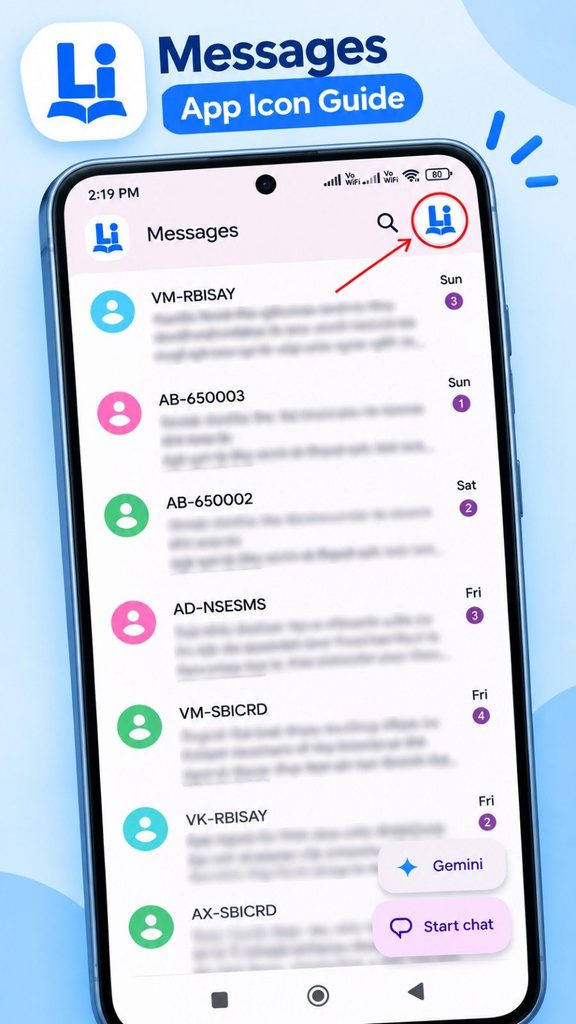
- Open the Google Messages app and tap your profile icon in the top right corner.
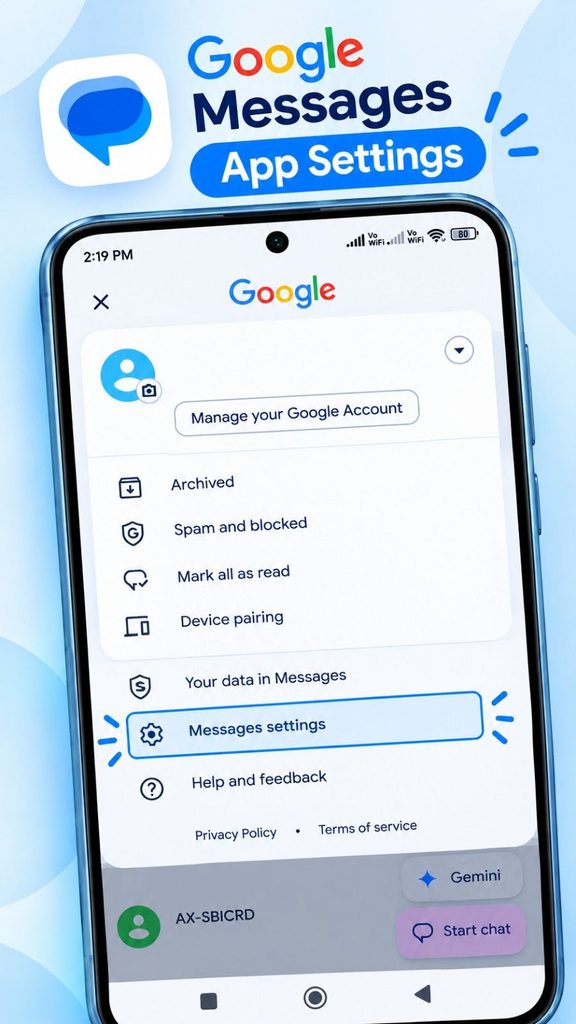
- Select Messages settings.
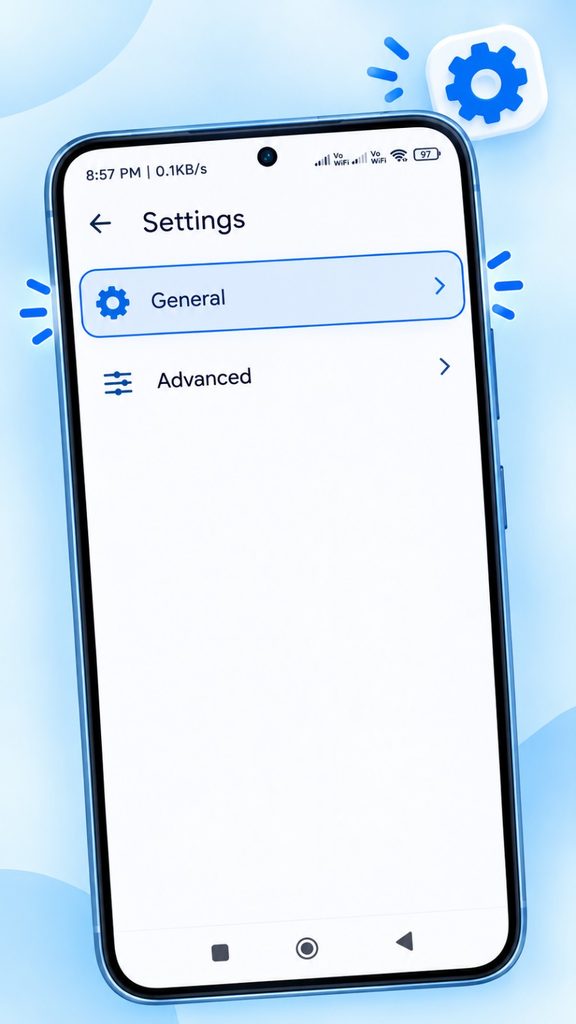
- Tap GENERAL.
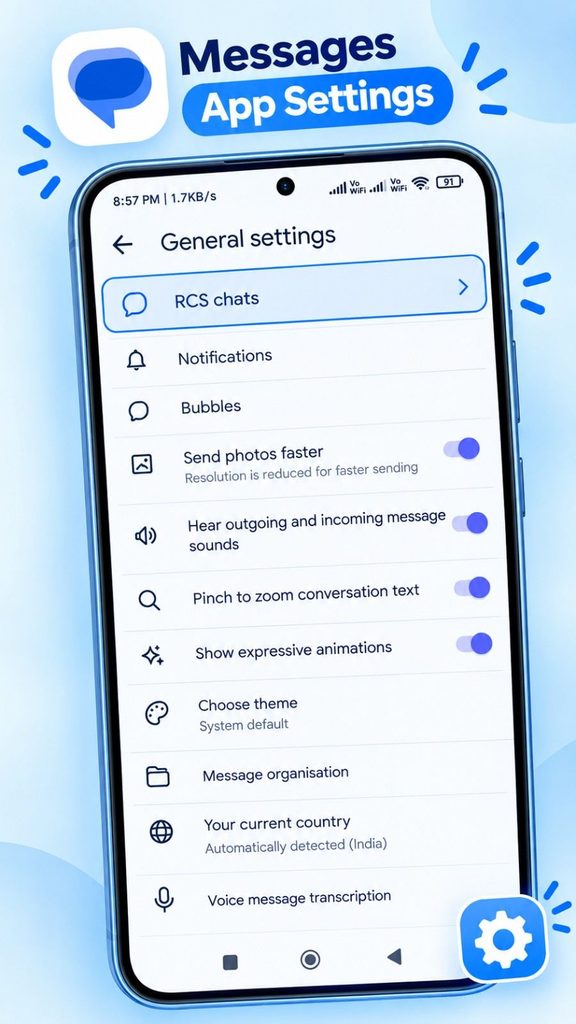
- Select RCS Chats.
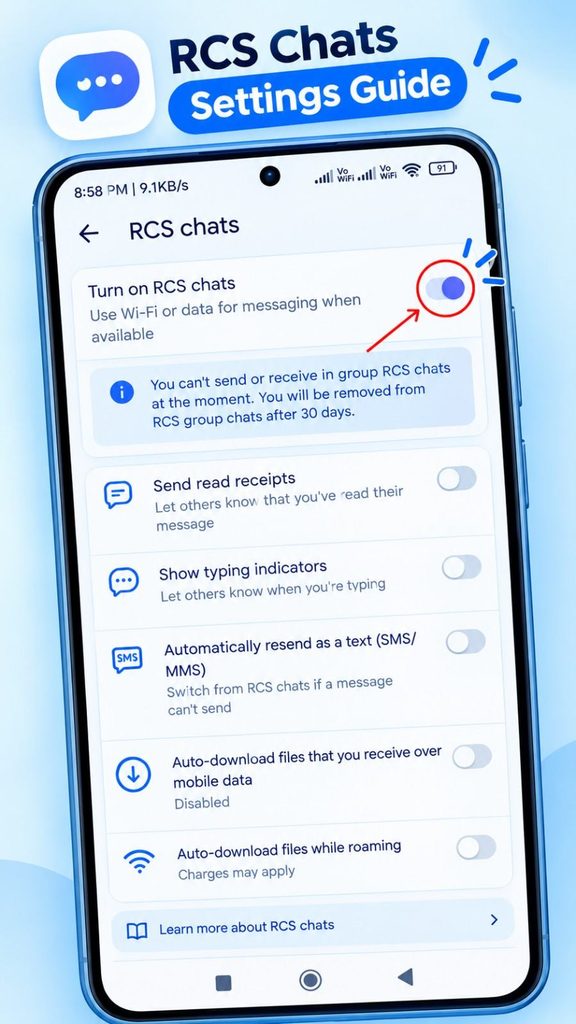
- Enable the Toggle Switch Next to “Turn On RCS Chats” Option.
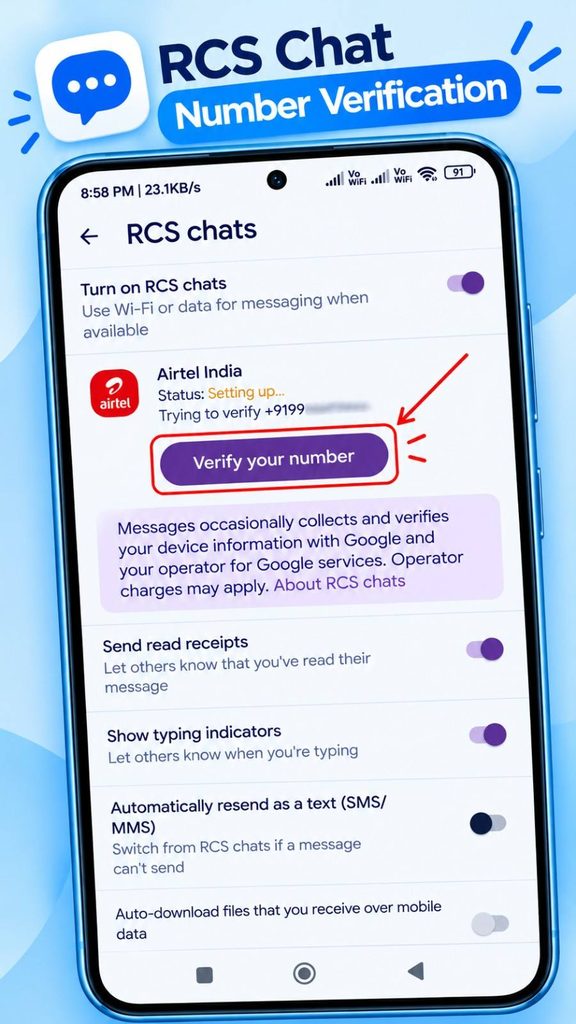
- Now Verify Your Phone Number.
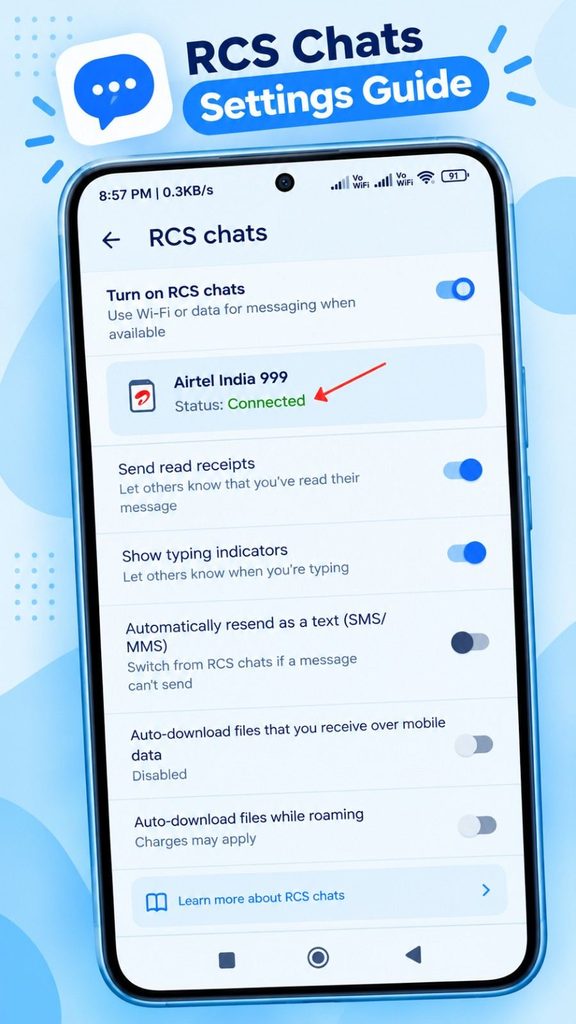
- Check Now! You’ll See Status: Connected. RCS is ready to roll when you’re connected.
That’s all! After performing these steps, RCS chat feature will be successfully setup on your Android phone. And when you utilize RCS chat for your SMS messaging, it sends your messages over Wi-Fi and mobile data via the Rich Communication Services or RCS protocol.
Read More : How to Use Google Authenticator: A Complete Step-by-Step Guide
How to Disable RCS Chats on Your Android Phone
RCS Chats greatly improve your normal SMS and MMS messaging experience. Often times while sending text messages, one of the users may not have RCS enabled which might lead to message compatibility issues. To get around this compatibility problem, you’ll need to turn off RCS chats on your phone.
Below are The Steps To Turn Off RCS Messaging in Android Google Messages:
- Open the Google Messages app and tap your profile icon in the top right corner.
- Select Messages settings.
- Tap GENERAL.
- Choose RCS Chats.
- Turn Off The Toggle Switch Near “Turn On RCS Chats” Option.
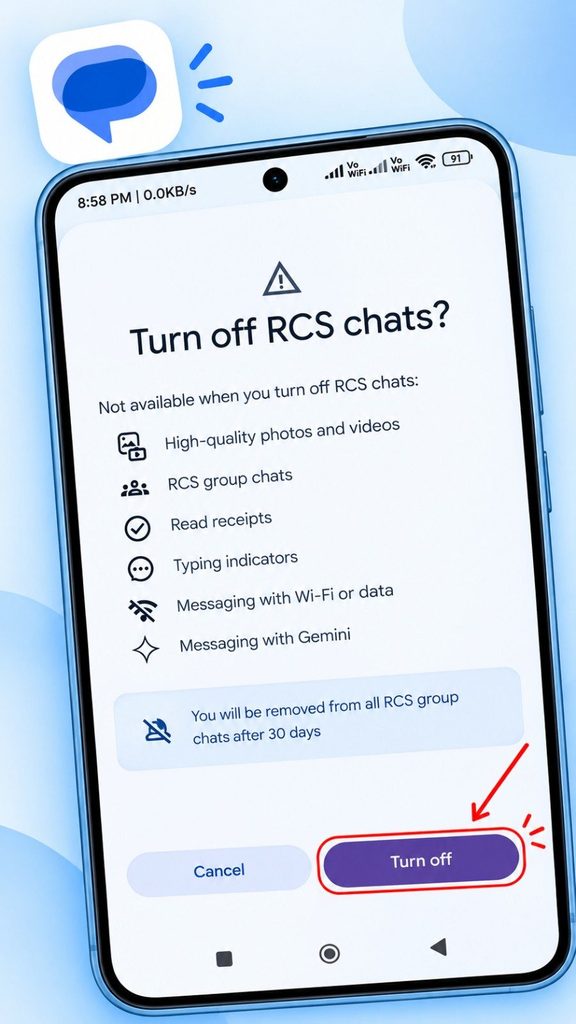
- Tap Turn Off to Confirm.
That’s it! Your Android phone now has the RCS chat feature turned off. When you send a text message to someone today it will be sent in the classic SMS/MMS text format. But you can always turn RCS messaging back on when you’re ready.
Frequently Asked Questions:
1. How do I revert back to SMS communications from RCS?
Answer – It is very simple to switch from RCS to standard text SMS messaging on your Android phone. To turn off this feature, launch the Google Messages app and tap on Profile > Messages settings > General > RCS chats > Turn off toggle switch.
2. Why are my RCS chats not working on my Android Phone?
Answer – There can be various reasons, why RCS chat feature is not working on your Android Phone. Like unsupported carriers, obsolete Google Messages app, Internet connection difficulties, disabled RCS mode, corrupt cache, etc.
I hope that this Article was very beneficial for you And you have learnt “How to Turn On and Turn Off RCS chats in an Android phone“. If you have any Android related troubles then inform us by comment below. Share this article with your other friends as well.
Important Note: Before turning RCS chats off, remember that Google warns this may remove you from RCS group chats. If you are switching phones or messaging apps, make sure your phone number is properly deactivated from RCS when necessary. Menu names may vary by device and app version.