

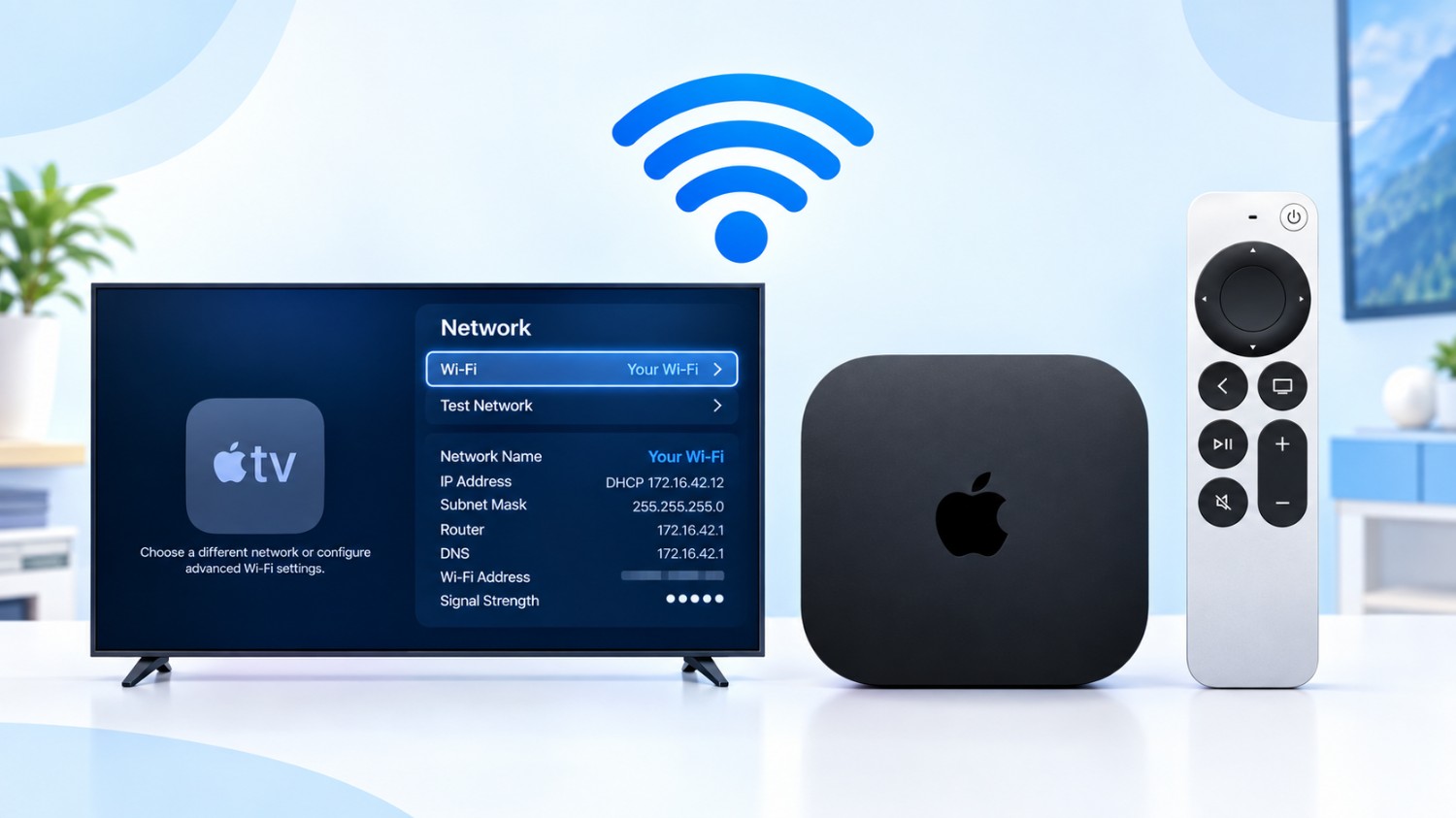
You’re not the only one experiencing internet problems with your Apple TV. A lot of the time, the culprit is just a stale or broken Wi-Fi connection — especially if you’ve recently swapped out your router or updated your Wi-Fi password. The good news? Forgetting the old network and jumping onto a new one (Connect and Forget Wi-Fi on Apple TV) is surprisingly quick to do once you know where to look.
Whether you’re dealing with constant buffering or your Apple TV just flatly refuses to connect, this guide walks you through the whole thing step by step.
Why You’d Want to Forget a Wi-Fi Network in the First Place
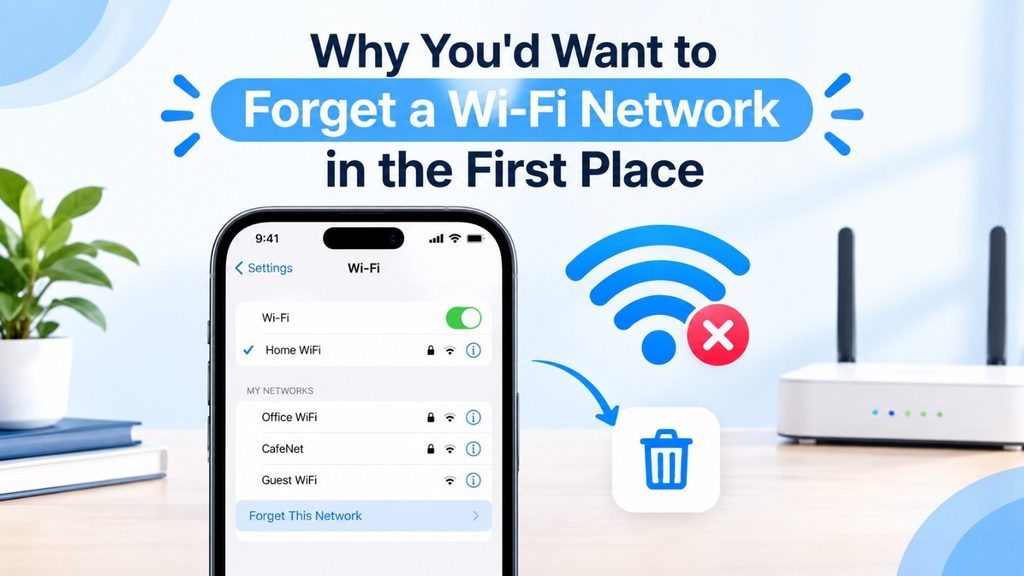
There are a handful of situations where this becomes necessary.
The most common one: you changed your router or updated your Wi-Fi password, and now your Apple TV is still trying to connect using the old details. It’ll keep failing every time because those saved credentials no longer work.
Another scenario is sluggish streaming — apps like Netflix or YouTube constantly buffering even though the rest of your house has fine internet. Outdated or corrupted network settings can quietly cause this, and a fresh connection often clears it right up.
And sometimes, it’s just a weird glitch. Forgetting and reconnecting to Wi-Fi is one of those “have you tried turning it off and on again” fixes that actually works more often than it should.
Read More: How to Turn Off Instagram Instants Feature
Before You Start — A Few Quick Checks
Nothing worse than getting halfway through a fix and realizing you don’t have what you need. So before you dive in:
- Have your Wi-Fi password ready — you’ll need to type it in.
- Make sure your router is actually on and working. Check it on your phone first.
- Your Apple TV should be somewhere with a decent signal — not buried in a cabinet across the house.
That’s really all you need.
How to Forget a Wi-Fi Network on Apple TV
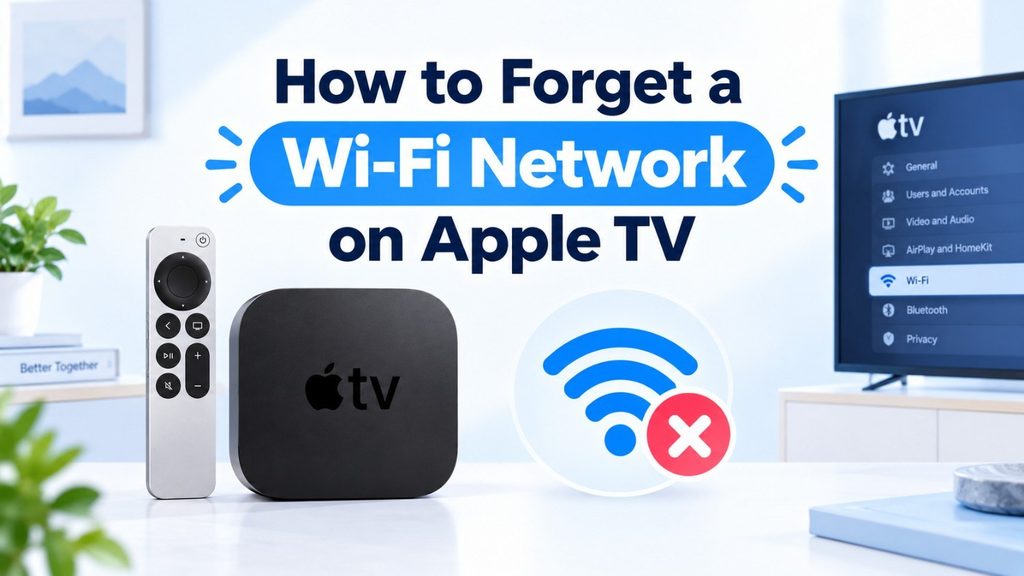
Step 1. Open Settings
From the Apple TV home screen, grab your remote and head into the Settings app.
Step 2. Go to Network
Scroll down until you see Network and select it. Here, you may view details about your existing connection.
Step 3. Tap on Your Current Wi-Fi Network
Select the Wi-Fi network your Apple TV is currently using.
Step 4. Choose “Forget Network”
Hit Forget Network and confirm. That’s it — Apple TV wipes the saved details and drops the connection.
How to Connect to a New WiFi Network
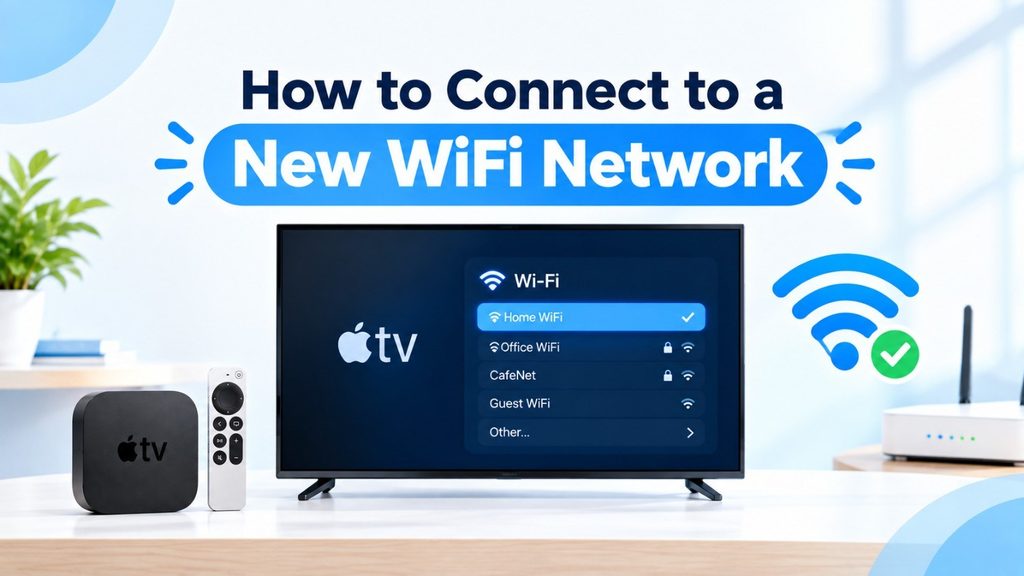
Step 1: Go back to the Network Configuration
Go back to Settings > Network.
Step 2: Choose Your New Network
There will be a list of available networks. Choose the network you want to connect to.
Step 3: Type in the password
Use the on-screen keyboard to enter your Wi-Fi password. It will not connect if you type the wrong character, so be patient.
Step 4: Click “Done”
If you select Done, Apple TV will handle the rest. If the password is correct, you’ll be connected in a matter of seconds and ready to begin streaming again.
Still Not Connecting? Try These
If your Apple TV is still giving you trouble after all that, here are a few things worth trying:
- Restart your Apple TV — Settings > System > Restart.
- Reboot your router — unplug it, wait 30 seconds, plug it back in.
- Check for software updates under Settings > System > Software Updates. An outdated tvOS can cause weird connectivity issues.
- Move the Apple TV closer to your router if you can — walls and distance really do make a difference.
- Temporarily disconnect other devices from Wi-Fi to see if it’s a congestion issue.
Most of the time, one of these does the trick.
Common Apple TV Errors and How to Fix Them
Apple TV won’t turn on or black screen
- Make sure the power cord and HDMI cable are plugged in securely.
- Ensure your TV is set to the correct HDMI input.
- Disconnect Apple TV from power for 6 seconds.
- Re-boot power.
- Try another HDMI cable or port.
- Also reboot TV
“Unable to connect to network” / Wi-Fi keeps disconnecting
- Restart your Apple TV and router.
- Go to Settings → Network, and re-connect the Wi-Fi.
- Move the router closer to you or try a wire.
- Try to connect other devices.
- Upgrade the firmware on your router.
Apple TV Remote Isn’t Working
- Charge the remote for 30 minutes using a Lightning or USB-C cable.
- Aim it right toward the Apple TV.
- To re-pair press and hold Menu/Back + Volume Up for 5 seconds.
- Remove anything obstructive or cases in the signal route.
- You can also use the Control Center Remote on your iPhone as a backup.
Sign in to Apple ID failure
- Please verify your Apple ID and password.
- Make sure your internet connection is OK.
- Sign out and back in in Settings → Users & Accounts
- Check for outages at apple.com/support/systemstatus.
- If necessary, reset your password at appleid.apple.com.
Apps freeze or crash (Netflix, Disney+, YouTube)
- Force close the app using App Switcher.
- Restart Apple TV: Go to Settings, then System, then Restart.
- Update the app in the App Store.
- Uninstall and re-install the app.
- Update tvOS in Settings > System > Software Update.
“Unable to connect to iTunes Store” / “Unable to load content”
- Verify your internet connection
- Sign out of your Apple ID, then sign in.
- verify date, time, and area settings
- Reboot your router and Apple TV.
- If Apple’s servers are down, wait a little and try again.
Audio / No sound out of sync
- Check the volume and make sure the TV is not muted.
- To choose the device you want to use, go to Settings > Video and Audio > Audio Output.
- Reattach the HDMI cord.
- Turn off any Bluetooth speakers or AirPods that might have hijacked the audio.
- Restart your TV and the Apple TV.
Image flickering, No Signal, Wrong Resolution
- Try another HDMI cable preferably a high speed authorized one.
- Go to Settings → Video and Audio → Format and reduce the resolution.
- Try turning HDR or Dolby Vision off.
- Run HDMI Connection Check – video and audio settings.
- Plug it straight into the TV, not into a receiver.
Apple TV Stuck on Apple Logo or Update Error
- Remove power for 10 seconds and apply power.
- If an update is installing let at least 10 mins.
- Disconnect and reconnect the HDMI cable.
- Restore your Apple TV via a USB-C cable and a Mac or PC (on compatible models).
- If it’s still stuck, reach out to Apple support.
Apple TV Not Showing Up or AirPlay Not Working
- Your iPhone/Mac and Apple TV should be on the same Wi-Fi network.
- Go to Settings > AirPlay & HomeKit to turn on AirPlay.
- Restart your Wi-Fi router and Apple TV.
- Turn off and on again your device’s Wi-Fi and Bluetooth.
- Update your device and Apple TV to the latest software.
Conclusion
Forgetting and reconnecting to Wi-Fi isn’t the flashiest fix, but it genuinely solves a lot of Apple TV internet problems. If your connection’s been flaky or you’ve recently made any changes to your home network, it’s one of the first things you should try. Takes maybe five minutes and could save you a lot of frustration.
FAQs
Q.1. Answer, How to Reset Wi-Fi Settings Apple TV?
Answer- Go to Settings > Network > Select your current network > Forget Network. That clears saved connection details.
Q.2. Say, Why is my Apple TV connected to Wi-Fi but not working?
Answer- This generally turns out to be router problems, poor signal or software upgrades. The quickest thing to try first is to reboot both the Apple TV and your router.
Q.3. Answer, Does Apple TV connect to hidden network?
Answer- Yes. Even if the network name and password aren’t listed, you can enter them manually from Network settings.
Q.4. Say, If I forget a network do my apps or data get deleted?
Answer- No, definitely not. All it does is delete saved Wi-Fi credentials. Everything else remains exactly the same.