

Let’s be honest, a password alone is no longer enough. Data breaches happen constantly, phishing scams are getting smarter, and the reality is that if someone gets hold of your password, there’s not much standing between them and your account. That’s exactly the problem Google Authenticator was built to solve.
This guide covers everything from the initial setup, how to use it day-to-day, managing multiple accounts, switching to a new phone, and what to do if things go wrong. If you’ve been meaning to set it up but weren’t sure where to start, this guide covers everything.
What is Google Authenticator?
Google Authenticator is a free app that creates short time-based verification codes that you use with your password when you log in. It is like putting a second lock on your door – if someone gets a copy of your key (your password) they can’t get in without the second lock.
How It Actually Works
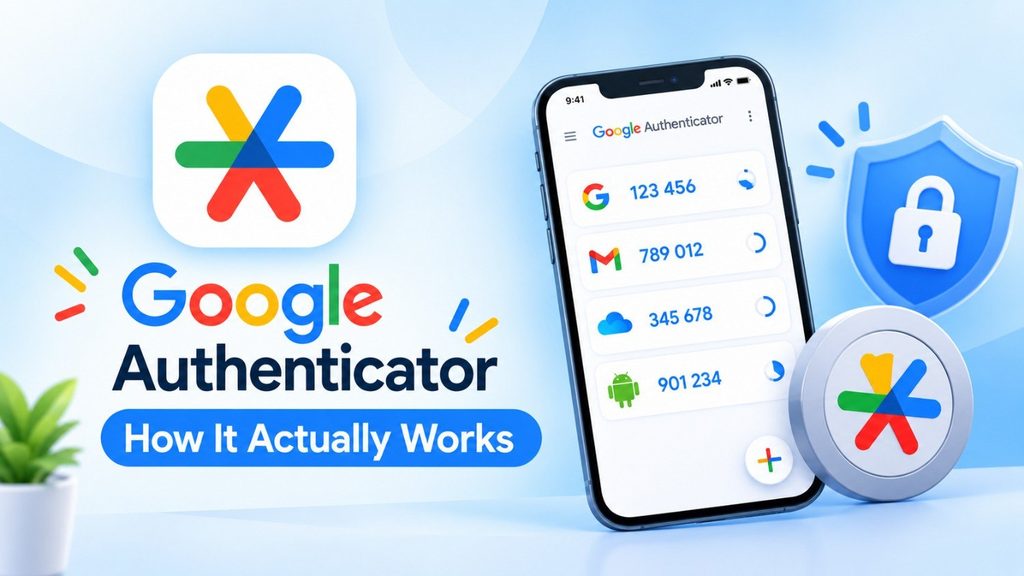
Every 30 seconds, the app spits out a fresh six-digit code. When you log in somewhere, you enter your password like normal, then open the app and type in whichever code is currently showing. The code expires quickly, so it’s useless to anyone who might intercept it.
2FA or two factor authentication is easy. Instead of proving who you are in one way, you prove it in two ways.
- Something you know — your password
- Something you have – your phone with Google Authenticator on it
It’s a small extra step, but it makes a big difference. If your password is stolen, your accounts are still locked.
Why Bother Setting It Up?
It Significantly Reduces Your Risk
Most account takeovers are due to stolen passwords. Hackers buy leaked credentials, run automated login attempts and get in. If you turn on 2FA, a stolen password is not enough. They would also need your phone.
It Also Defends Against Phishing
If you type your password on a fake login page, the attacker still can’t use it without your current authentication code. That’s a large safety cushion.
Configuring Google Authenticator
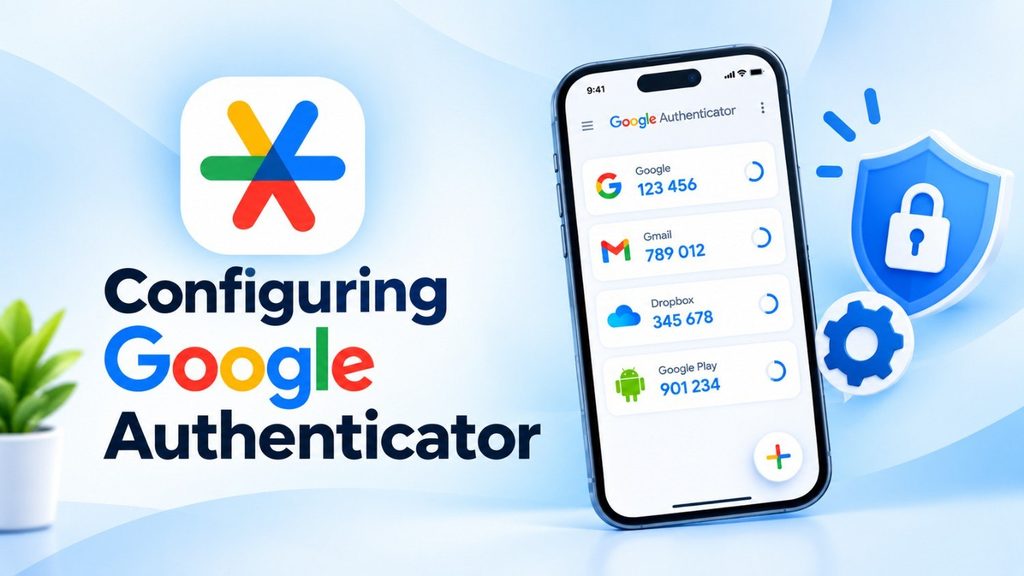
Step 1: Get the App
Go to the App Store or Google Play and search for Google Authenticator. It’s free and takes about half a minute to install.
Step 2: Turn on 2FA on Your Account
Open the security settings of any account you want to protect – Gmail, Instagram, your bank, whatever. Look for something like ** Two-Factor Authentication ** or ** Authenticator App ** and turn it on .
Step 3: Scan the QR Code
Once you begin the 2FA setup on the website, you will be shown a QR code on the screen. Open Google Authenticator, tap the + icon, then choose Scan QR Code and point your camera at it. The app does the rest automatically.
Step 4: Make Sure It’s Working
The app will show you a six digit code right after it scans. Type that on the website to prove the connection. Once it’s through, you’re good.
Logging in with Google Authenticator After you’ve done it a few times, it’s second nature:
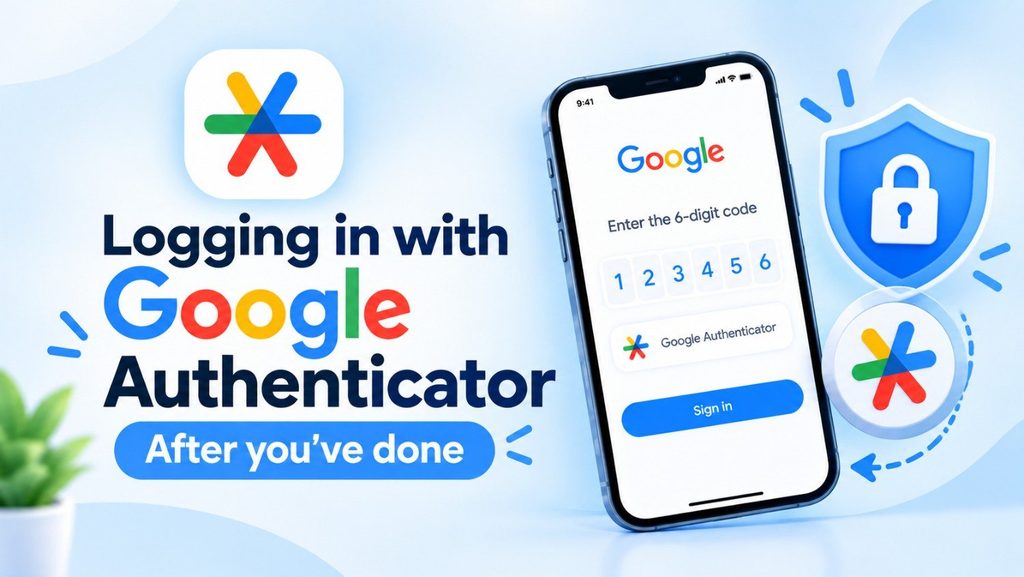
- Enter your username and password like normal.
- When you’re asked for a verification code on the site, open Google Authenticator.
- Find the entry for that account and type in the code shown — just make sure you enter it before the 30 seconds run out and it refreshes.
That’s it. The whole thing takes about 10 seconds once you’re used to it.
Read More: How to Restart or Force Restart a Frozen iPad
Using it on Multiple Accounts
The good thing about Google Authenticator is that you may add as many accounts as you like. Crypto exchanges, cloud storage, social media, email— You can add them all. Just do the same QR code setup for all of them.
The app has separate listings for each service so that things are organized and you get the right code quickly without any confusion.
Moving to a New Phone
On your new phone: Install Google Authenticator, select Import Accounts, and scan the QR code from your previous device. Everything transfers over.
One important note: do this before you wipe or lose access to your old phone. If you’ve already lost it, you’ll need to use backup codes (more on that below).
Common Problems and How to Fix Them
The Code Isn’t Working
Nine times out of ten, this comes down to timing — you waited too long and the code refreshed. Just grab the new one and try again.
Codes Are Always Wrong (Even Fresh Ones)
This is usually a time sync problem. The codes are based on the current time , and if your phone ‘s clock is even slightly off , the codes won ‘ t match . Go into your phone’s settings and make sure the date and time are set to update automatically.
Lost Your Phone
This one’s stressful, but manageable. Most services give you backup codes when you first set up 2FA — those are what you’d use here. If you’ve moved to a new device but kept your old one, the transfer process above will work. If neither is an option, contact the service’s support team directly.
A Few Things Worth Doing Right Away
Save your backup codes somewhere safe. Every service gives you these when you enable 2FA. Store them somewhere you can actually find them — a password manager, printed and locked away, whatever works for you. They’re your lifeline if you lose access to the app.
Lock down your phone. Since the app lives on your phone, your phone’s security matters. Use a strong PIN, fingerprint unlock, or face recognition.
Prioritize your most important accounts. Start with email (since it’s the master key to everything else), then banking, cloud storage, and social media.
Wrapping Up
Getting Google Authenticator set up takes maybe 10 minutes, and once it’s running you barely notice it’s there. For the minimal friction it adds to your login routine, the security payoff is genuinely substantial. Go through your most important accounts this week and enable it — future you will be glad you did.
FAQs
Q.1. Say, Is Google Authenticator free?
Answer- Yes, they are completely free to download and use.
Q.2. Answer, Does it work offline?
Answer- Yes! The codes are created locally on your smartphone, so no Wi-Fi or mobile data is required.
Q.3. Answer, Can I use it on multiple devices?
Answer- Yes you can have the same account on 2 phones if you need to. Many services allow you to scan the same QR code on multiple devices during setup.
Q.4. Answer, What if I lose my phone?
Answer- Use the backup codes you saved when you set things up. If you still have your old phone, use the transfer/export feature. No backup codes and no old phone means you’ll need to go through that service’s account recovery process.
Q.5. Answer, Is it actually secure?
Answer- Yes. Time-based one-time passwords (the same thing used by Google Authenticator) are a well-known security standard and much harder to compromise than SMS-based 2FA.