

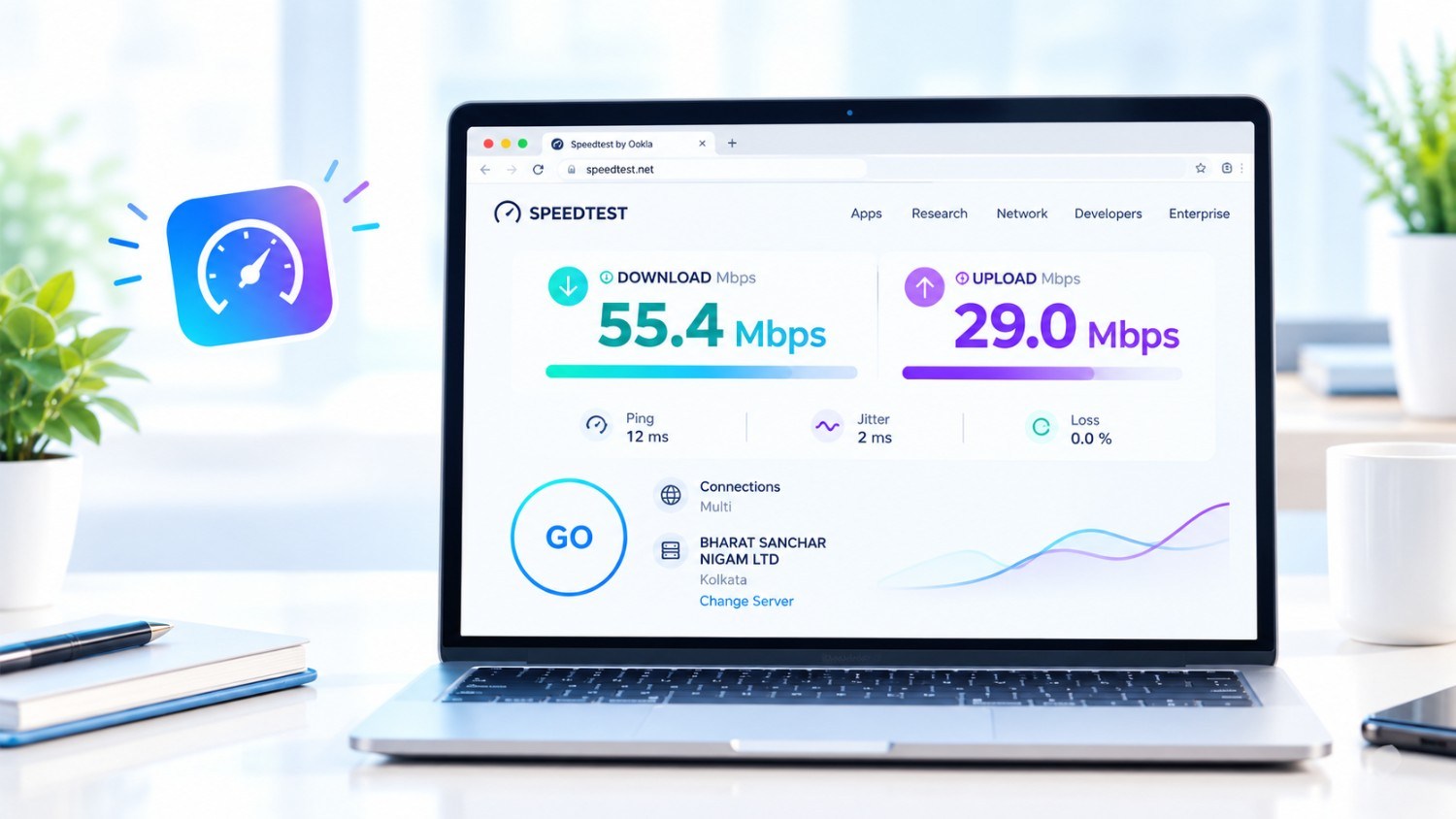
If you’re running Windows 11 on your PC or laptop and want to check internet speed then this post will certainly help you. Users connect wifi to their computers to access the internet. But many people do not know what is the speed of the internet linked to their laptop or computer.
While there are many excellent internet speed test programs for Windows 11, but in this post I have shared a few special techniques with you, by following which you will be able to test Wi-Fi internet speed for free on your Windows 11 PC or laptop.
Users find it difficult to do many things with slow internet. In such a case they need to verify their internet speed on their windows pc. Here below I have shared 2 simple methods to assess net speed of a laptop.
1. How to Check Internet Connection Speed in Task Manager in Windows 11
Task Manager is a feature of a Microsoft Windows laptop or PC. Now with this task manager quickly check internet speed. So please read and follow the guidelines given below.
Step 1. Turn on Your Laptop or PC and Connect Internet via Wi-Fi or Ethernet.
Step 2. Right Click on Windows Icon and Select Task Manager from the Menu List.
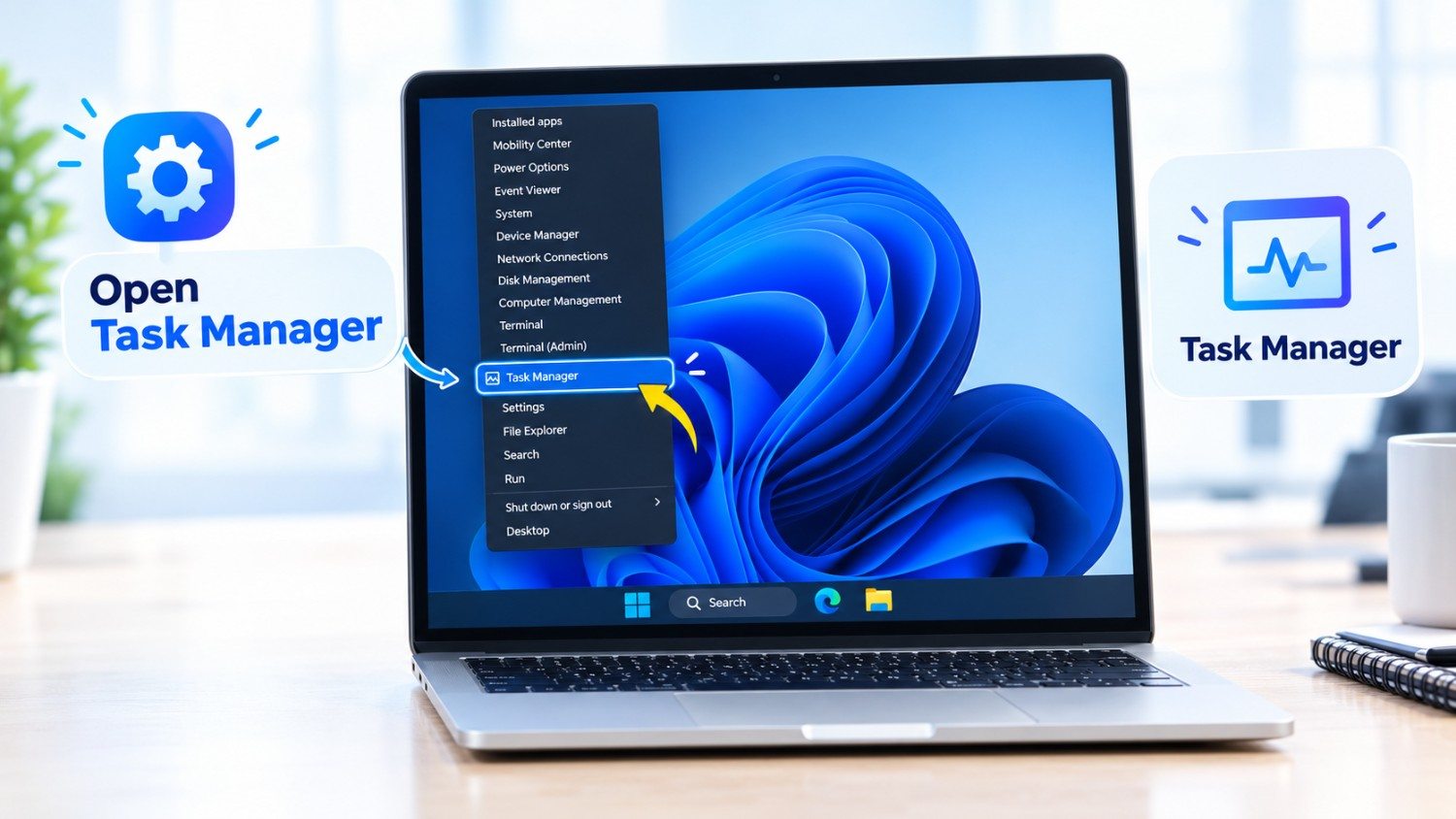
Step 3. Now Task Manager Opens with a Pop-up Windows. Tap on Performance Option.
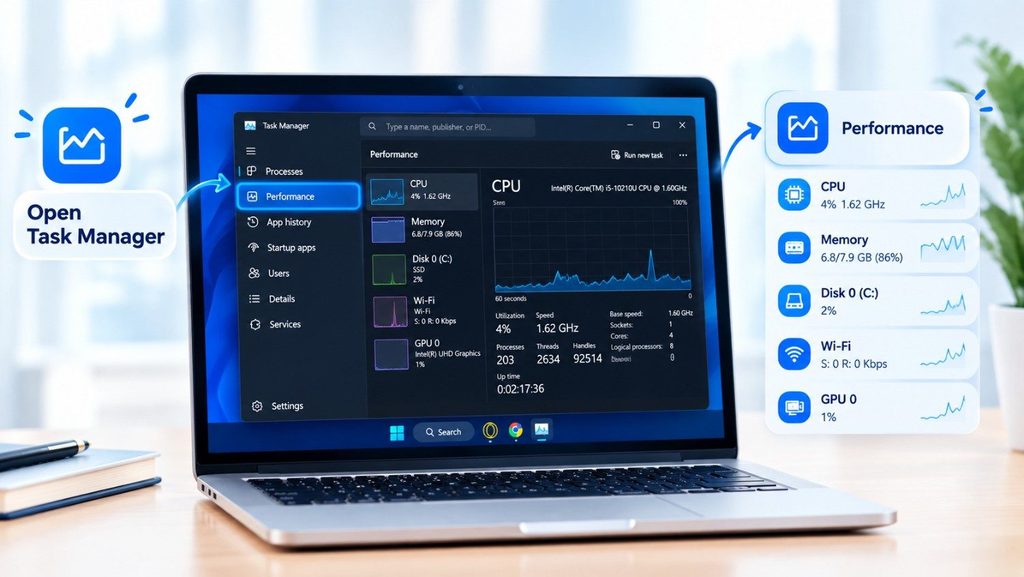
Step 4. Select Wi-Fi Option from Performance List.
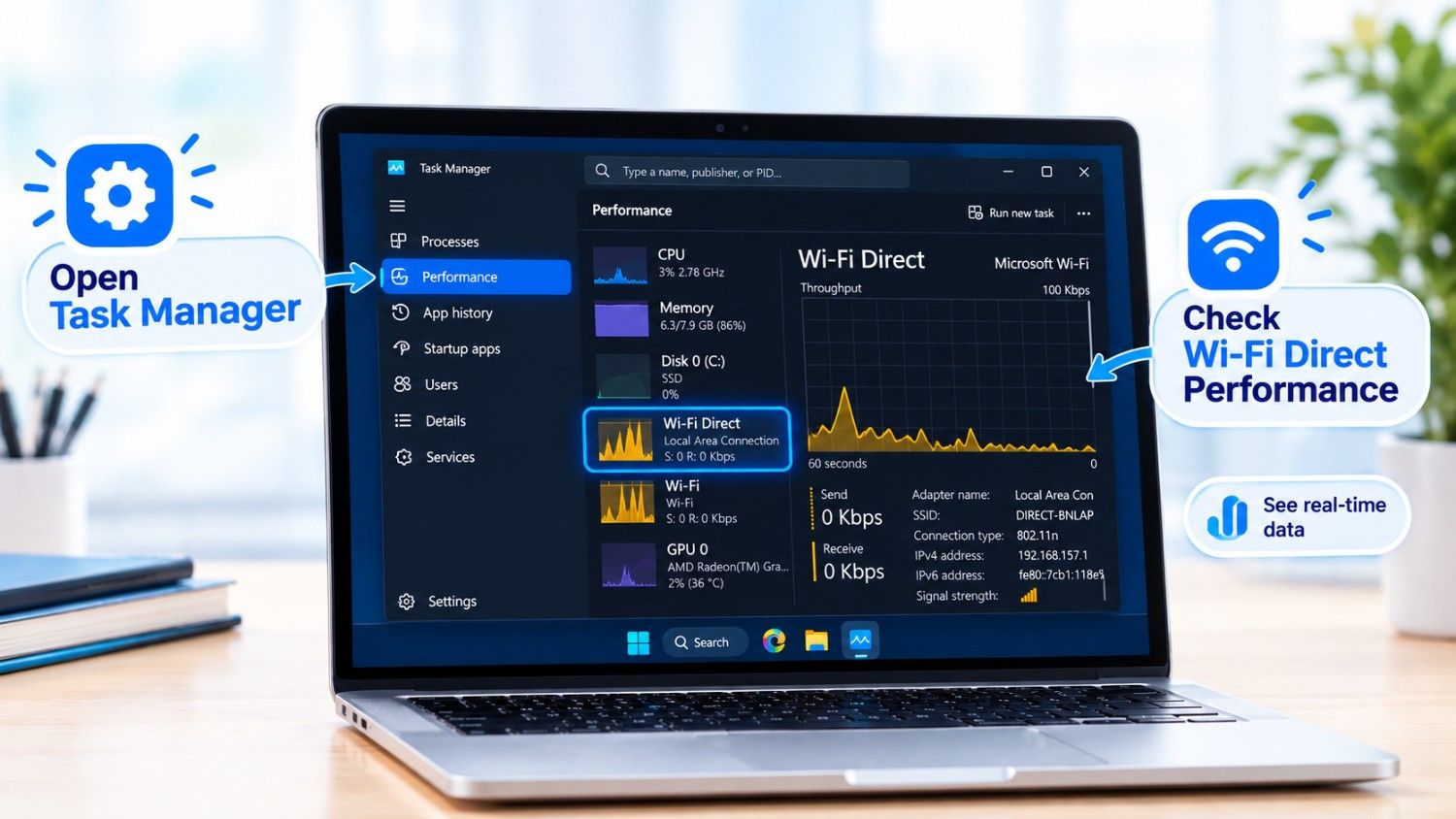
Completed. Now you can check Send and Receive characteristics of your connected internet speed test result.
Read More : 4 Fast Ways to Check your Android’s Internet Speed
2. Check Real-time Network Speed on Windows 11 Using Browser
Most of the time, most people use the second method. You can check real time internet speed with latency, ping, location, IP address and graph using any browser on your Windows machine. For this carefully follow the procedures listed below.
Step 1. Launch any browser on your Windows PC.
Step 2. Now Search on Google ‘Internet Speed Test by Ookla‘.

Step 3. On Browser Open First Website of Speedtest.net.

Step 4. Click Go Button on the Screen. (Connect With Internet)

Step 5. Now It tests your real time download and upload speed.

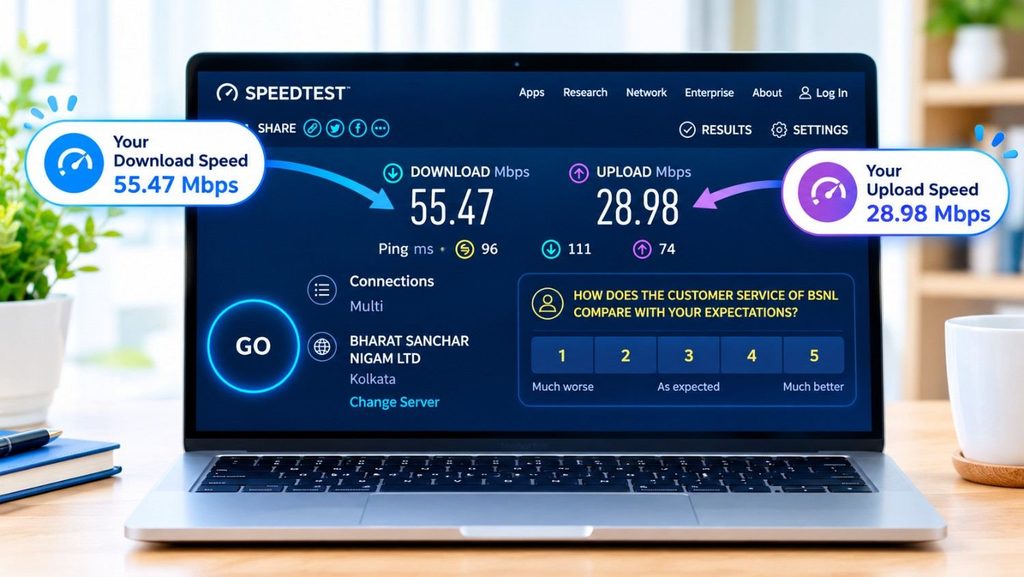
Step 6. Now You Can See the Result of Your Speed Test on Screen with DOWNLOAD Mbps and UPLOAD Mbps Record.
Here are Some Things to Avoid while Testing Internet Speed on Windows 11

- Do not leave downloads or streaming on. Windows Update, OneDrive sync, Steam, Netflix or other devices on the network will devour bandwidth and produce a deceptively low result.
- Don’t test over poor Wi-Fi and blame your ISP.** Test close to the router, or with an ethernet wire for the most accurate number.
- Don’t run just one test. Run 2-3 tests at different times of the day, speeds change throughout the day.
- Don’t test with a VPN on. It adds overhead and sends traffic to another server, which reduces speed.
- Don’t use Task Manager’s network graph for a speed test. It just indicates what is being used not what your queue can handle.
- Do not confuse Mbps with MB/s. 100 Mbps is just around 12.5 MB/s.
- Steer clear of random, ad-filled speed test sites. Stick to trusted ones like Speedtest.net, Fast.com, or Cloudflare’s speed test.
- Don’t open a tonne of browser tabs or run heavy programs. They can slow down the output.- Never disregard ping and upload metrics. Latency and upload are also important for gaming and video calls.
Frequently Asked Questions
1. Answer, How to test my internet speed on Windows 11?
Open a browser and access Speedtest.net, Fast.com, or Cloudflare speed test, then hit Start/Go.
2. Say, Does Windows 11 include a built-in speed test?
Not a real one. Task Manager (Ctrl+Shift+Esc Performance Wi-Fi/Ethernet) indicates live usage, not what your line can handle.
3. Say, How do I check my Wi-Fi network speed?
Go to Settings → Network & internet → Wi-Fi → Manage Wi-Fi settings → Properties. Search for “Link speed (Receive/Transmit).” This is the link between your PC and router, not your internet plan speed.
4. Answer, What is a good internet speed?
Approximately 25 Mbps for basic usage, 50-100 Mbps for HD streaming and remote work, and 200+ Mbps for homes with several devices or 4K streaming and gaming.
5. Say, Why is my speed slower than my ISP promised?
Common causes: weak Wi-Fi signal, network congestion, background downloads, using a VPN, having an old router, or your plan speeds being “up to” the maximums.
6. Say, What is the difference between Mbps and MB/s?
1 byte equals 8 bits . 100 Mbps ~ 12.5 MB / sec . ISPs advertize in Mbps , download managers commonly show MB / sec .
7. Say, What is ping, download and upload?
Download is how fast data gets to you, upload is how fast you send data out, and ping ( latency, in ms ) is response time. Ping is preferable if lower for gaming and calls.
8. Answer, Is there a way to test speed using Command Prompt or PowerShell?
Not with a native command. You may also use Ookla’s Speedtest CLI (download separately) or execute netsh wlan show interfaces to see the Wi-Fi link speed.
9. Say, Do I test on Wi-Fi or Ethernet?
Both if possible. Ethernet shows your genuine line speed. Wi-Fi shows real world performance in your space. Big gap = Wi-Fi trouble.
10. Answer, How do I boost my internet speed on Windows 11?
Reboot router Switch to 5GHz or go closer Close background applications Update network driver Use Ethernet Check Task Manager for bandwidth-hungry applications