

MacBooks handle most things without a fuss. But push one hard enough, and it gets hot. Fast. And that heat isn’t just annoying on your lap — it slows your Mac down, drains the battery quicker, and over time, wears out the hardware.
The good part is you don’t need any tech background to deal with this. Checking your MacBook’s temperature takes a few minutes, and once you know what’s normal and what’s not, you’re set.
Why Bother Checking the Temperature?
When your MacBook is doing something heavy — gaming, editing a video, running twenty tabs, or charging while you’re doing all of the above — the chip inside works harder and gets hot. Once it crosses a certain point, macOS slows it down on purpose to protect itself. That’s called thermal throttling, and it’s exactly as annoying as it sounds — your Mac gets slower right when you need it fastest.
Keep an eye on the temperature and you get a few real benefits:
- You spot the problem before it gets bad
- Your Mac stays fast instead of randomly lagging
- Your battery lasts longer
- No more random shutdowns
- You find out exactly which app is cooking your CPU
Honestly, this is one of those small habits nobody talks about, but it fixes more overheating problems than people expect.
Apple Silicon vs Intel: They Don’t Heat Up the Same Way
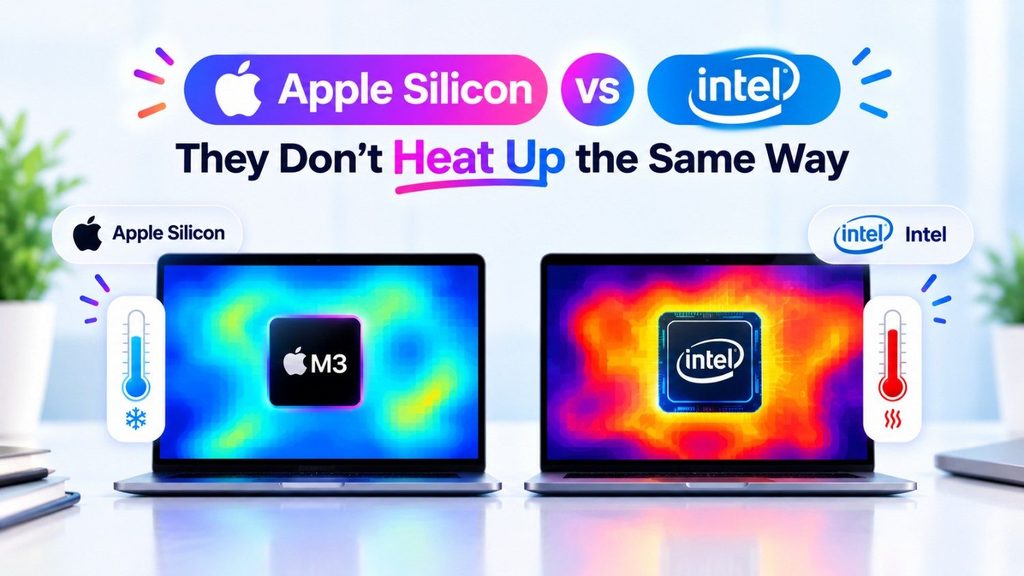
Old Intel MacBooks run warm doing almost anything — even watching a video call can heat them up.
The newer M1 to M4 chips are much cooler by design. But here’s the catch — some of them, especially the MacBook Air, don’t have a fan at all. So while they run cooler day-to-day, they hit their heat limit faster once you push them hard, and they slow down sooner than a MacBook Pro would.
If You Have a MacBook Air, Read This
No fan means no fan noise to warn you something’s wrong. Temperature is the only signal you’ll get. A few things that actually help:
- It slows down sooner than the Pro during long tasks like exporting video — that’s normal, not broken
- A laptop stand or riser helps more here than on any other MacBook, since it’s the only cooling this thing has
- Doing heavy work in short bursts with breaks lets it cool down between rounds
- Since there’s no fan sound to alert you, a temperature app becomes genuinely useful, not just a nice-to-have
Method 1: Check What’s Running Hot (Activity Monitor)
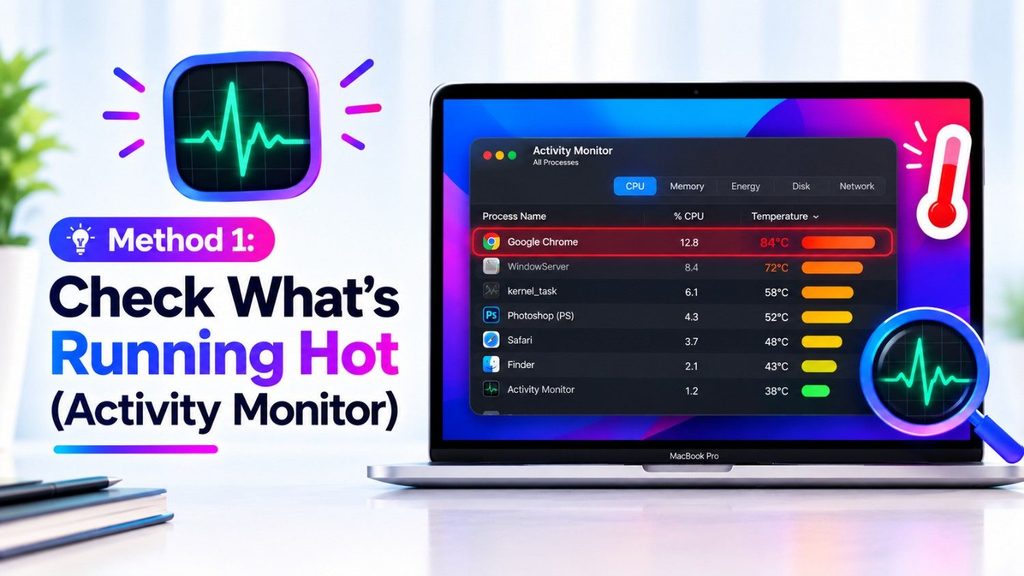
Before you install anything, your Mac already has a tool built in.
Step 1: Open it
- Press Command + Space
- Type Activity Monitor
- Hit enter
Step 2: Look at CPU usage
- Click the CPU tab
- Look for anything eating an unusually high percentage
- Nine times out of ten, that app is why your Mac feels hot
Quit the app, and you’ll usually feel the difference within a minute.
Step 3: Check Energy tab too
This shows which apps drain your battery fastest — and draining the battery fast almost always means generating more heat.
Activity Monitor won’t give you an actual number in degrees. But it’s the fastest way to figure out why your Mac is hot, even before you install a real temperature tool.
For the Curious: A Terminal Trick
If you’re comfortable typing commands, this one pulls real temperature and power data straight from your Mac, no app needed:
sudo powermetrics –samplers smc -i1000 -n1
Not for everyone. But if you want to double-check what a third-party app is telling you, this is the no-nonsense way to do it.
Method 2: Get Real Numbers with an App

If you actually want to see “my CPU is at 68°C” instead of guessing, you need an app for that. A good one will show you:
- Live CPU temperature
- Fan speed
- Battery temperature
- GPU heat
- Overall system load
Setting One Up
- Download it from the developer’s site or the App Store — stick to well-known names
- Give it permission to read your Mac’s sensors when it asks
- Once it’s running, the temperature shows up live in your menu bar
As a rough guide: 40°C to 70°C is normal daily use. If you’re sitting above 90°C regularly, something needs attention.
Which App Should You Actually Use?
App Good for Works on Apple Silicon Controls fan Cost iStat Menus Everyday monitoring — CPU, RAM, battery, fan Yes No Paid TG Pro Manually cranking up fans when it’s hot Yes Yes Paid Macs Fan Control Simple, lightweight fan management Yes Yes Free Intel Power Gadget Old Intel Macs only No No Free
iStat Menus is what most people end up using and never switch away from. It sits quietly in your menu bar and shows everything at a glance.
TG Pro goes a step further — if your fans aren’t spinning fast enough on their own, you can push them manually.
Macs Fan Control is the “I just want fan info, nothing fancy” option.
Intel Power Gadget only makes sense if you’re still on an older Intel machine — it won’t even install on Apple Silicon.
Read More: A Step-by-Step Guide on Converting Xbox Disks to Digital Games
Charging Makes It Worse -Here’s Why
Charging adds heat on top of whatever your CPU is already dealing with:
- A cheap or non-Apple charger can deliver power unevenly, which means extra heat
- Charging over USB-C while running heavy apps stresses the same port doing two jobs at once — MagSafe doesn’t have this problem
- Charging under a blanket or inside a bag traps heat with nowhere to go — this alone causes a huge chunk of overheating complaints
If your Mac only gets hot while plugged in, try MagSafe instead of USB-C, and always charge it on a hard surface, not soft furniture.
Using It Closed With an External Monitor? That Heats Up Too

Working with the lid shut (clamshell mode) blocks the airflow that normally comes through the keyboard area. Heat has fewer ways out, so it can build up faster during long work sessions — especially if the closed Mac is lying flat on the desk.
A stand that keeps it slightly raised, even closed, makes a real difference here.
Simple Habits That Keep It Cool
- Never use it on a bed, couch, or pillow — that blocks airflow completely
- Clean the vents once in a while — dust builds up more than people expect
- Close apps you’re not using
- If your browser is a CPU hog, try Safari instead
- Keep macOS updated — Apple actually ships performance fixes in these updates
- Skip direct sunlight, especially while charging
- A cooling stand helps if you regularly push your Mac hard
- Watch the room too — a hot, stuffy room makes your Mac throttle sooner, even for light work
Still Hot? Try an SMC Reset
If nothing above fixes it, Apple’s own recommended move is resetting the SMC — the part that handles fans, power, and heat management.
Apple Silicon Macs (M1 and later): just shut down, wait 30 seconds, turn it back on. There’s no separate reset step — that’s it.
Older Intel MacBooks: shut down, then hold Shift + Control + Option (the left-side keys) + the Power button together for 10 seconds. Let go, then turn it on normally.
This won’t fix a broken part, but it clears out a surprising number of glitches that cause overheating for no clear reason.
Signs Your MacBook Is Actually Overheating
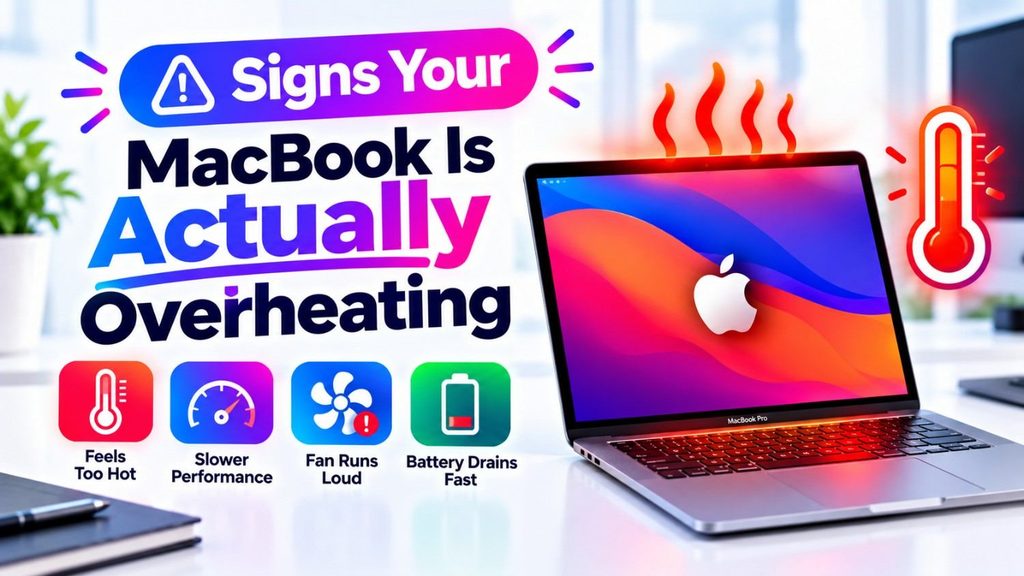
- Fans running loud all the time, even doing light stuff
- Everything feels slow for no reason
- The keyboard is uncomfortably hot to touch
- Apps crash out of nowhere
- Battery drains way faster than usual
- It shuts itself off without warning
See these often? Don’t brush it off — check the temperature and figure out what’s going on.
When It’s Time to Call Apple Instead
Most overheating is fixable yourself. But a few signs mean it’s a hardware problem, not something you can fix with tips and resets:
- The battery looks swollen, or the trackpad has lifted slightly
- It overheats even on light tasks right after you’ve done an SMC reset
- You smell burning or notice discoloration near the vents
- The fans don’t spin at all, even under heavy load
If you see any of these, stop troubleshooting and get it checked at an Apple Store — a swollen battery especially shouldn’t wait.
Final Thoughts
Checking your MacBook’s temperature isn’t complicated, and it pays off. Start with Activity Monitor to catch the obvious culprits, then add a proper app if you want actual numbers.
Apps like iStat Menus and TG Pro make this easy, no tech skills needed. Mix that with the habits above, and your Mac should run cool and last a lot longer.
FAQs
Q1. How do I know if my MacBook is overheating?
The keyboard feels too hot, the fans won’t quiet down, apps crash for no reason, or it shuts off by itself. If more than one of these sounds familiar, yes, it’s running hotter than it should.
Q2. What’s a safe temperature for a MacBook?
40°C to 70°C is normal. Heavy work like editing or gaming can push it to 80°C — still fine. Above 90°C for long stretches is where you should start worrying.
Q3. What’s the best app to check MacBook temperature?
Most people just use iStat Menus and never look elsewhere. It sits in your menu bar, shows temperature and fan speed all the time, and takes two minutes to set up.
Q4. Why is my Mac hot even when I’m barely using it?
Something’s running quietly in the background. Open Activity Monitor and check what’s eating CPU — usually it’s a browser tab, a sync app, or something you forgot was open.
Q5. Can heat actually damage my MacBook?
Yes, over time. It wears the battery out faster and shortens the life of internal parts. Keeping an eye on temperature is a small habit, but it adds real years to your Mac.
Q6. Does the MacBook Air overheat more than the Pro?
It can, under heavy load — since it has no fan and cools passively. For everyday use it’s fine, but during long video exports or gaming, it throttles sooner than the Pro does.