

We’ve all been there. A movie that simply won’t load, a download that takes forever or a video call that just keeps stopping. And the first thing that comes to mind is: “Is it my internet or just me?”
“Before you call your service provider and complain, it would be easier if you knew your actual Internet speed. The good news is you can check your internet speed on an Android phone in under a minute, and you don’t have to be a techie to do so. Here are 4 simple ways to check internet speed on your Android whether you are on Wi-Fi or on mobile data.
1. Test your speed with a speed test website
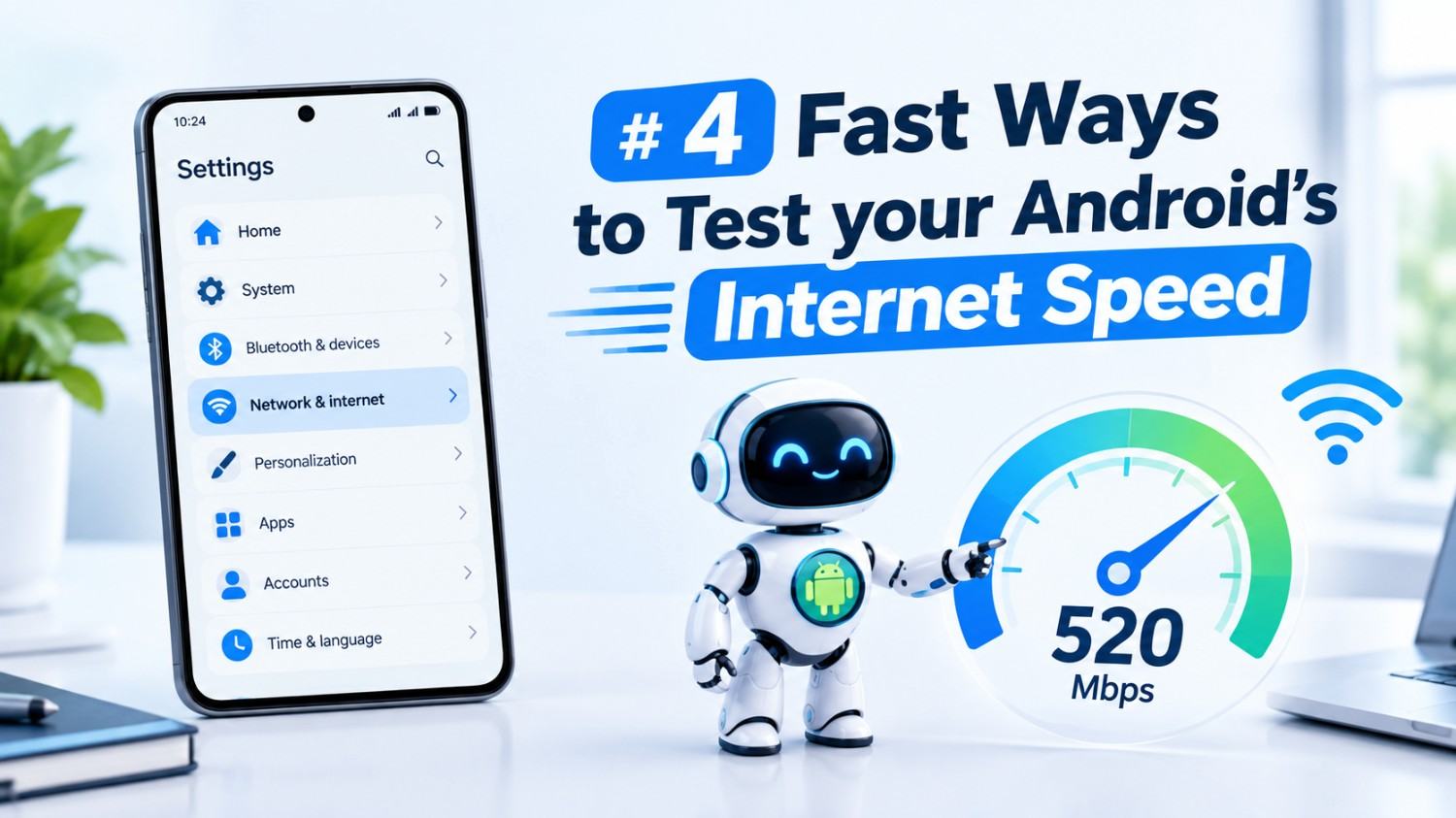
The easiest and fastest way, requires no apps. Just open your phone browser (chrome, firefox, whatever you use) and google “speed test”. Right on the search results page you’ll find a built-in speed test tool (powered by Measurement Lab). Tap “Run Speed Test” and seconds later you’ll receive your download speed, upload speed and latency (ping).
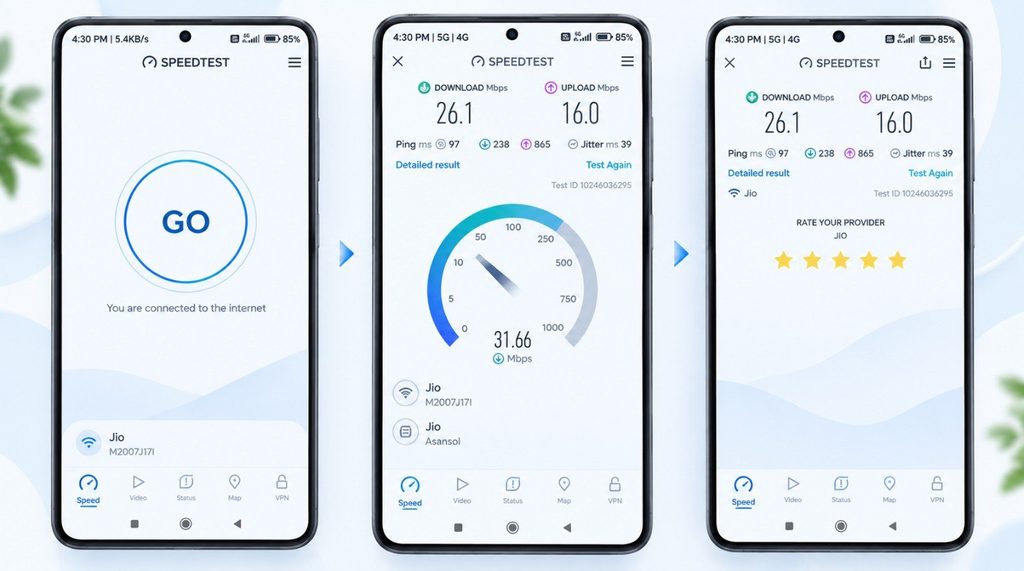
It’s a good way to get a quick answer without having to download another app to your phone. You can also get the same result from dedicated sites like Speedtest.net or Fast.com right from your browser.
Best for: People who want a one-time check without installing anything.
2. Check Your Speed With a Dedicated Speed Test App
If you check your internet speed often, it’s worth installing a dedicated program. Speedtest by Ookla is one of the most popular and for a reason, it’s simple, fast and dependable. Other good choices are Fast.com from Netflix and Meteor from OpenSignal.
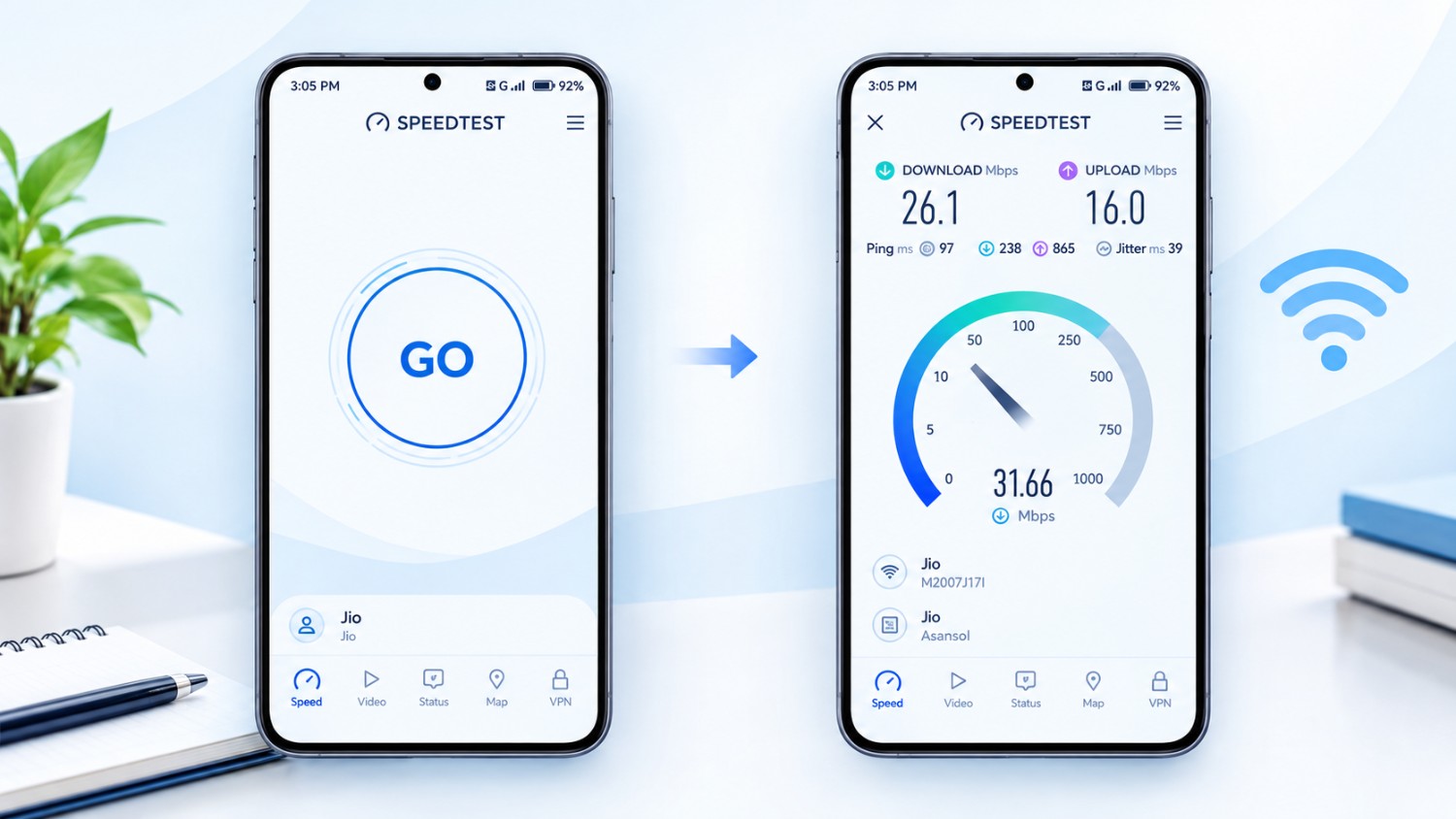
After installation, launch the app and press the “Go” button. The program tests the speed of your connection to the closest server and displays your download speed, upload speed and ping in seconds. A lot of these applications also have historical data so you can see whether your speed has been going down over time – useful if you’re attempting to make a case with your internet provider.
Best for: Speed tests fast, track your speed, and more complete reporting.
Many ISPs now have their own apps, too, which enable you monitor your home network directly. If your ISP provides an app (like Jio, Airtel, Xfinity, etc depending on your region), you may login and see real-time speed, data use and even connected devices.
This is very handy, because it tells you the speed of your real internet plan, and not simply what your phone is now getting. It also allows you to determine if the problem comes from too many devices on the same Wi-Fi network at the same time.
Best for: Source speed testing, particularly home Wi-Fi diagnostics.
Use Android’s Built-in Network Diagnostics (Developer Options)
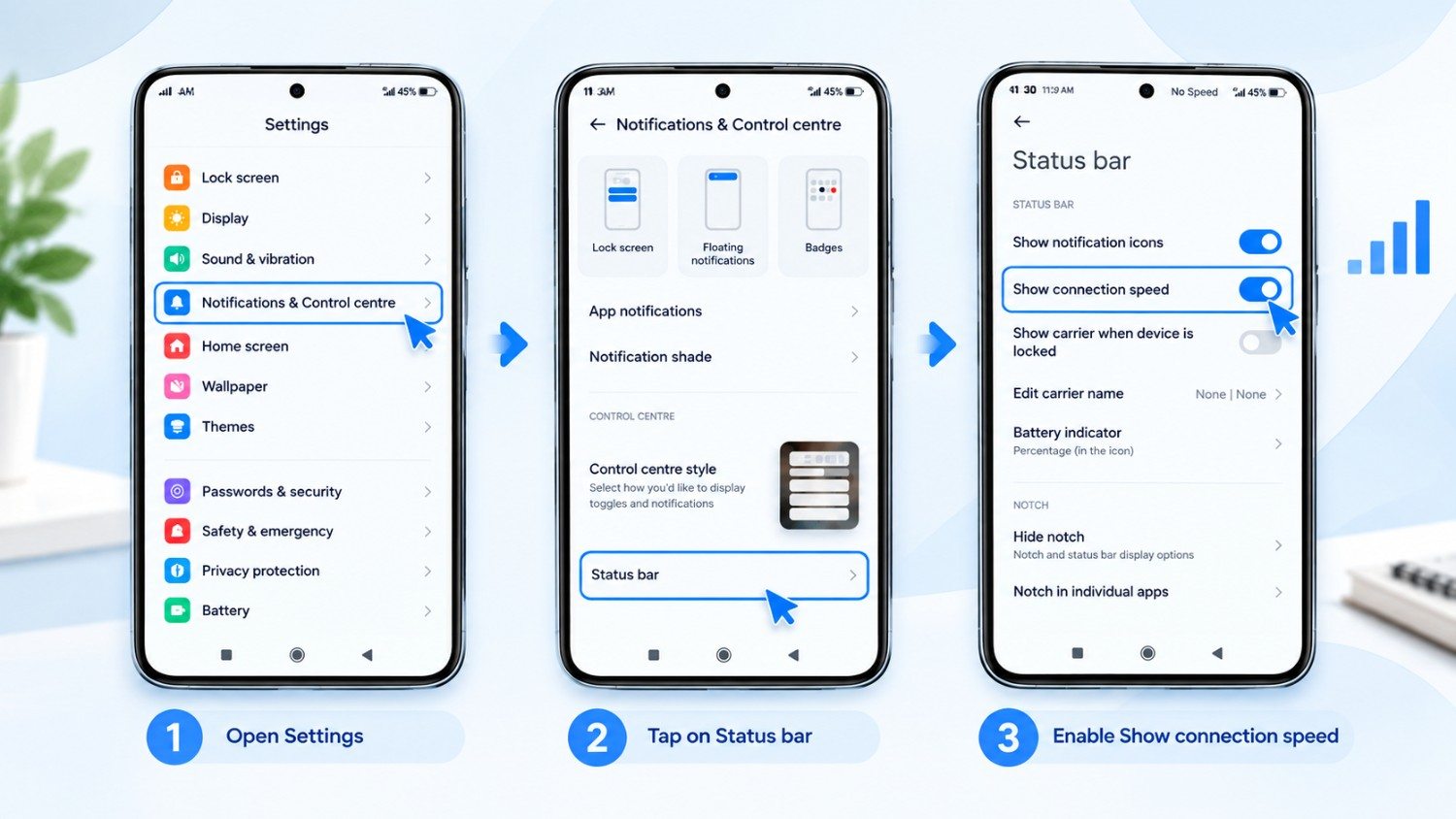
Few people know but there are several hidden network diagnostic tools hidden in Developer Options of Android phones. While this approach doesn’t give you the exact same “Mbps” number as a speed test software, it can reveal helpful characteristics like network type (4G, 5G, or Wi-Fi), signal strength, and connection stability — which can help you understand why your speed could be erratic.
If you want it , you can go to Settings > About Phone and hit the Build Number 7 times to activate Developer Options . Then go to Settings > System > Developer Options and browse through the options relating to network etc. This is a more sophisticated way and better for folks that like to dig a little deeper.
Best for: Understanding how good a connection actually is, not just how fast the numbers are.
You also Know “How to Increase Android Internet speed”
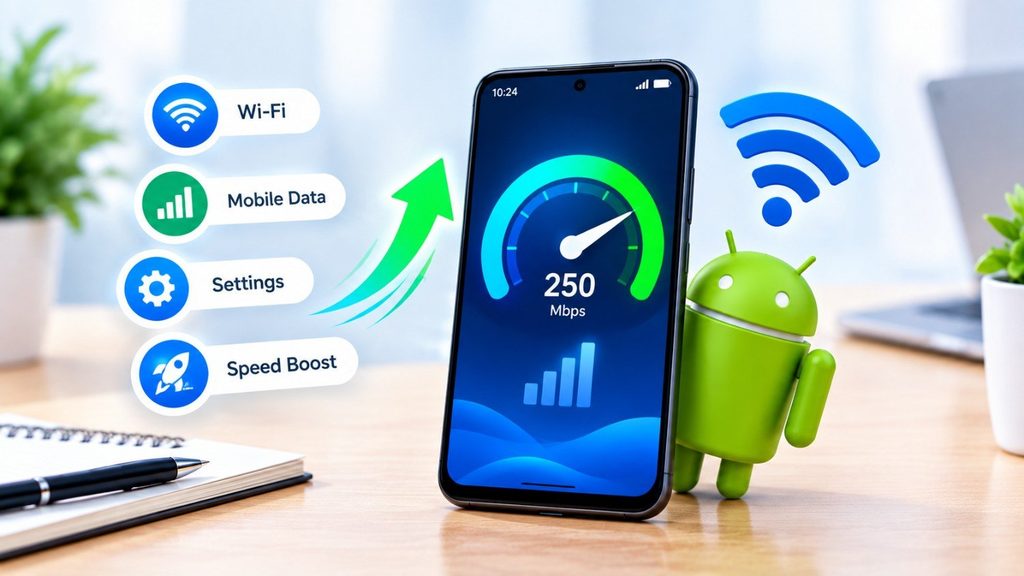
Having a slow internet connection on your Android phone may be frustrating whether you’re surfing, streaming or downloading. Here are some ideas to help you speed up:
- Measure Your Network Signal Strength : The most common cause of slow speeds is a weak Wi-Fi or mobile signal. Try walking closer to your router, or switching between Wi-Fi and mobile data to see which works better in your current location.
- Turn off your phone and your router : A quick reboot should cure any temporary problems. Reboot your router . Unplug it and wait for 30 seconds and then plug it back in Restart your phone . This will refresh those network connections
- Clear Browser and App Cache : Open Settings > Apps > [App Name] > Storage > Clear Cache. Cached data can gather and slow down surfing and app loading.
- Update your system and apps : The network may perform less efficiently if you use an old version of Android or an old app. Settings > System > System update. Update applications via Google Play Store.
- Block Unused Apps From Using Background Data : Go to Settings > Network & Internet > Data Usage and disable background data for any apps you don’t use. This will free up bandwidth for the stuff that matters.
- Switch DNS Servers : To speed up loading times, choose a faster DNS like Google DNS (8.8.8.8) or Cloudflare (1.1.1.1). Go to Wi-Fi settings > modify network > advanced options > change DNS to manual
- Disable VPN : When Not Needed VPNs route your traffic through extra servers which may slow down your connections. If you don’t need the added privacy or region-switching, just turn it off.
- Beware of Network Hogging Apps : Go to Settings > Network & Internet > Data Usage to view the applications that are using the most data – close or restrict those operating in the background.
- Reset network settings : If none of the above work, go to Settings > System > Reset Options > Reset Wi-Fi, Mobile & Bluetooth. This will clear stored networks and settings that might be conflicting.
- Contact your ISP or Carrier : If your speeds are poor on more than one network then your internet plan or coverage might be the issue, so contact out to your provider to check for outages or plan updates.
When Network Speed Tests Might Be Wrong or Not Available
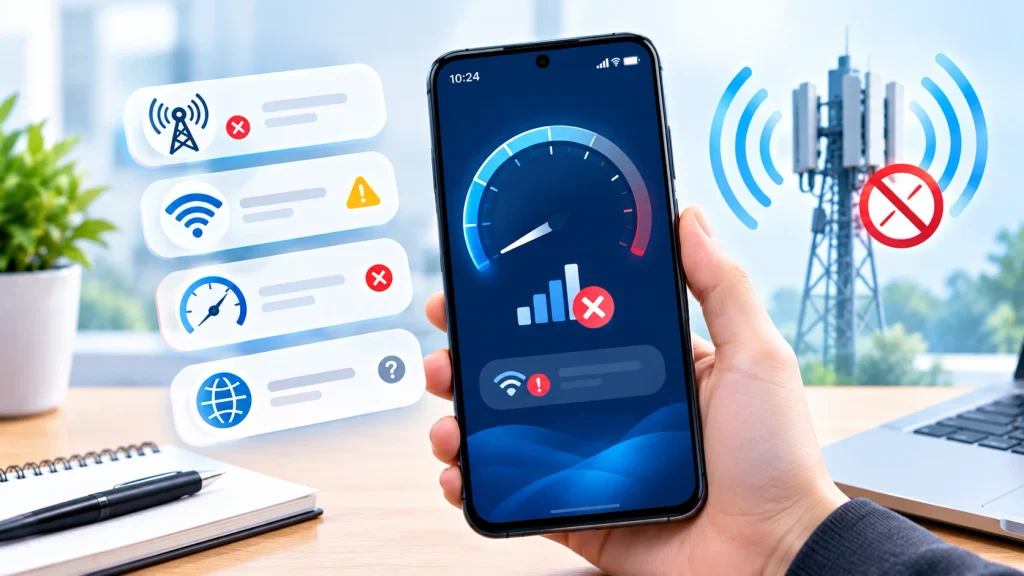
Speed test results are not usually accurate. Below are the most frequent cases when your Android device may display wrong speed values or won’t check the speed at all:
1. Unstable / Weak Signal : If your Wi-Fi or mobile signal is weak/fluctuating the speed test may give inconsistent or inaccurately low results, or not complete at all.
2. Too Many Connected Devices : When more than one device is using the same Wi-Fi network at the same time (streaming, downloading, gaming), the bandwidth gets split up — thus the speed test you do by yourself won’t necessarily be indicative of what the router is capable of.
3. Apps using data in the background : If apps are downloading updates, syncing or streaming in the background during the test, the results will be biased lower than your actual available speed.
4. VPN active : Using a VPN may route your traffic through remote servers which might dramatically decrease test results – this is not indicative of your actual ISP speed.
5. Server-Side Issues (Speed Test App/Website) : Sometimes, the problem is not on your side – the speed test server may be overloaded, located far away, or simply offline, resulting in false results.
6. Aeroplane Mode / Change Networks During Test : If your phone switches from Wi-Fi to mobile data or aeroplane mode during the test, the test will most likely fail or show 0/error.
7. ISP Throttling : Some ISPs limit bandwidth during particular hours or after data caps are reached – the speed test will show you the exact real-time results, but they won’t match your “advertised” plan speed.
8. Poor Router Placement or Outdated Hardware : If your router is outdated or positioned at a distance from your device (such as behind walls or on different floors), the test may represent the router’s capabilities rather than the true speed of your internet plan.
9. Problems with DNS or Network Settings : Problems with DNS configurations or damaged network configurations can lead to the speed test hanging, timing out, or not loading at all.
10. Testing at busy times : If you run speed tests during high-traffic hours (like evenings or weekends), you can see much lower results. This is due to network congestion, not because your actual connection is weak.
Conclusion
There are a lot of elements that might effect your internet speed – your location, how many devices are connected, network congestion, or even the time of day you’re testing. If you continually get sluggish speeds on several tests, it could be necessary to reset your router, relocate closer to your Wi-Fi source or contact your internet service provider.
I regularly test my speed, especially before big video calls or big downloads, it can save you a lot of frustration. With these four techniques you will always know what your Android phone is truly functioning with, and if it is really your internet that is the problem.