

A short time ago, when I was trying to make an image with ChatGPT on my cellphone, instead of generating the image, it showed me an error message: “I Wasn’t Able to Generate the Image Due to an Error on My Side”. I thought I was the only one having this image generating difficulty.
But upon doing some investigation, I found I was not alone. This problem is happening on the mobile version of the ChatGPT app as well as the desktop version. So if you are creating photos on Windows or Mac you could see this problem as well.
1This is a transient issue and I have fixed it by following several troubleshooting methods. Here are the methods I employed, one by one. You can follow these methods to fix this ChatGPT picture generating problem as well.
Read More : How to Use Google Authenticator: A Complete Step-by-Step Guide
How to Resolve “I Wasn’t Able to Generate the Image Due to an Error on My Side” Issue on ChatGPT
1. Check Your Internet Connection
Image generating method demands a fast internet connection. If your device is linked to a slow network or if the internet is not operating, the process will fail and an error message will show. Please verify your internet speed or switch to another connection (e.g. from WiFi to mobile data, or vice versa).
2. Check ChatGPT Servers Status
ChatGPT’s features run on servers. If the ChatGPT server goes down when generating a picture, then you can see an error message like this on your screen. You may check the live status of ChatGPT’s servers at this link.
3. Clear the Chatbot Cache
The common reason of this problem is the app cache, and you can simply fix ChatGPT image generator problems by emptying this faulty cache. Below are the procedures to clear cache for Android, iOS and Windows.
Android:
- Press and hold the ChatGPT app icon and tap on App Info.
- Tap Storage and data.
- Tap Clear Cache.
On iPhone (iOS):
- On your iPhone, open Settings.
- Head to General > iPhone Storage > Chat-gpt.
- Tap Offload App.
- Tap Reinstall App.
Windows:
- Get to Settings Fast with Windows + I
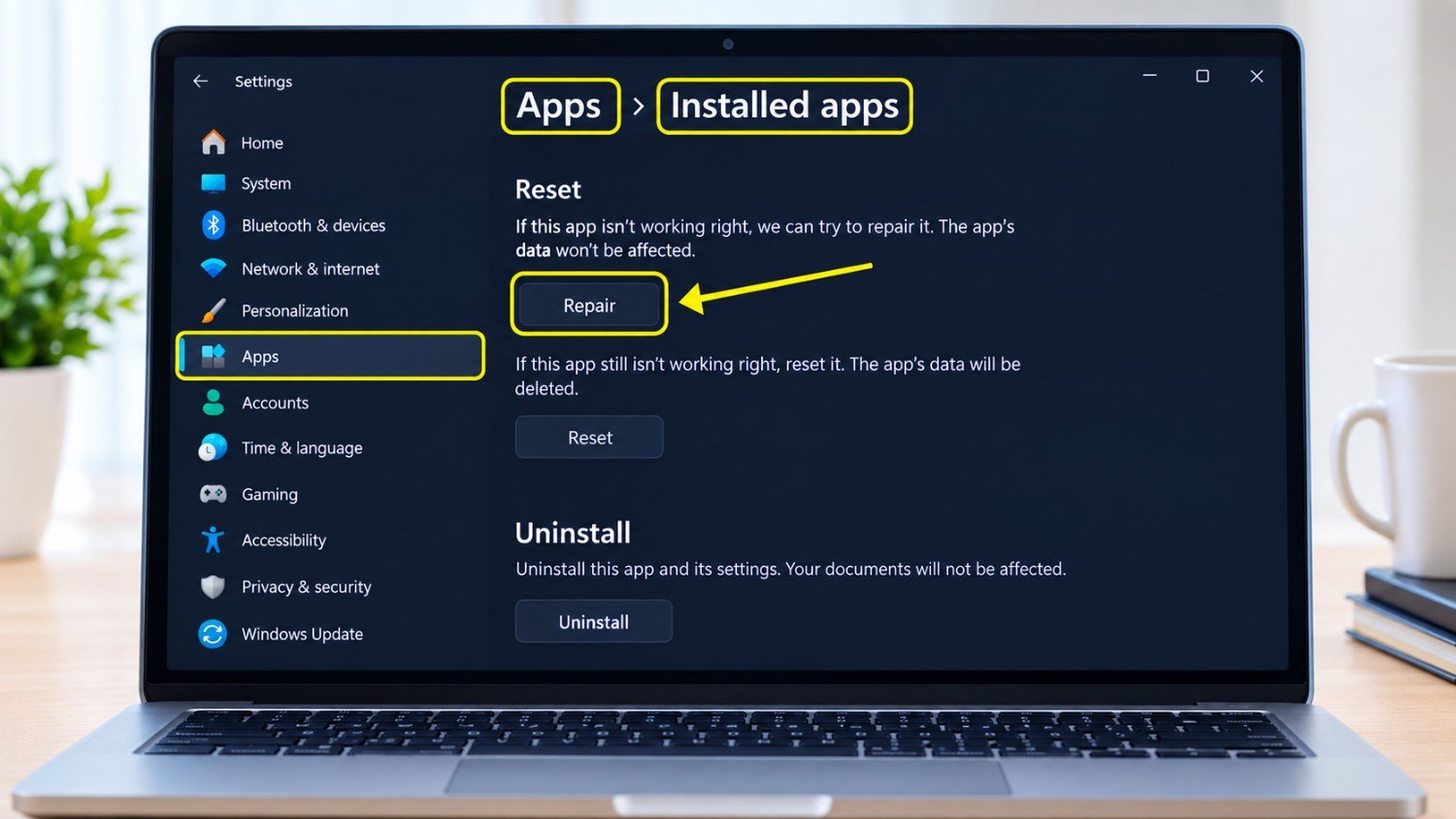
- Click on Apps > Installed Apps.
- Search ChatGPT > Advanced Options.
- Scroll Down and Select Repair.
4. Update Your ChatGPT
Sometimes, this issue can also be related to an outdated app. Bugs or faults in an old app are the cause of such troubles. You can update the ChatGPT app to the current version from the Google Play Store or Apple App Store.
5. Sign Out and login Back Again
If you have tried all the techniques given above, but the issue still remains, it may be due to unauthenticated login data. To resolve this issue, you need to log out of your account on the ChatGPT app, restart your device, and then log back in. After doing that, you will be able to make photos without any hindrance and the problem will be fixed.
Some More Known ChatGPT Errors and How to Fix Them

- “Something didn’t go right. If the problem continues, please contact us”
- Refresh page (Ctrl+F5).
- Sign out and sign back in.
- Clear browser cache and cookies
- Turn off extensions or VPN.
- Try another browser or try incognito mode.
- “ChatGPT is full up right now”
- Wait 5-10 minutes and try again.
- Try in the non-peak hours.
- Reload the page.
- Check status.openai.com for outages.
- Get privileged access with a premium plan.
- “Network error” / “Error in body stream”
- Check your connection to the Internet.
- Disable VPN or proxy.
- Reset your router.
- Start new chat.
- Clear browser cache
- “Too many requests for 1 hour. Kindly try again later.”
- Don’t message for an hour or so.
- Close extra ChatGPT tabs.
- Don’t repost too quickly.
- Wait.
- Log out and then back in.
- If you hit the limit repeatedly, upgrade.
- “You have hit the current usage limit”
- Please note the reset time shown in the message.
- Wait until the limit is reset.
- If possible, go to a lighter model.
- Concise prompts
- Raise your limits on your plan.
- “Conversation not found”
- Reload the site.
- Sign out, then sign back in.
- Make sure you are logged into the same account.
- Check the chat wasn’t erased.
- Begin a new conversation.
- “Your session has expired” / “Unauthorized”
- Log in again
- Chatgpt.com cookies clear.
- Turn off VPN.
- Make sure your device’s date and time are correct.
- If it doesn’t work, Reset your password.
- “Error 429” Too Many Requests
- Send your prompt less frequently.
- Please wait a few minutes and try again.
- Add retry with backoff for API users.
- Check your billing and quota
- Request a limit increase, if necessary.
- 500 Internal Server Error / 502 Bad Gateway
- wait a few minutes, it’s generally server-related.
- Reload the page.
- Check status.openai.com.
- Try using another browser or device.
- If this persists, please check again later.
- “Access Denied” / Cloudflare “check you are human” loop
- Disconnect VPN or proxy.
- Clear cache and cookies
- Disable Adblock and other extensions.
- Please update your browser to Change networks (e.g., utilise a mobile hotspot).