

Want to Turn Off your Chromebook Touchscreen because of accidental taps or ghost touches? You can Disable it in a minute. Here’s How to lock the Touchscreen and switch it back on whenever you need.
Chromebook is a new form of laptop based on the Chrome OS. If you’re a Chromebook customer and you’re experiencing the touchscreen, you can disable it. If your Chromebook has a touchscreen, you may find yourself tapping and making gestures you didn’t mean to. Here in this article I have provided Step-by-Step, “How to Disable Touchscreen on Chromebook“.
There are many Chromebook owners (Lenovo, Asus, Acer, Dell, HP) that prefer a touchpad than a touchscreen. Fortunately, ChromeOS lets users to turn off the touchscreen on Chromebooks by setting up a Chrome Flags shortcut. Once you disable the touchscreen, you manage the Chromebook with the touchpad.
Read More: How to Fix “No SIM Card Detected” Issue on Samsung S26 Ultra
How Do I Disable The Touchscreen on Chromebook ? Let’s Know
You can disable the touchscreen on Chromebook to eliminate accidental taps or gestures, security difficulties, and hardware problems. Do this on your Chromebook:
How to Disable the Touchscreen on your Chromebook using Chrome Flags:
- Open Google Chrome Browser on Your Chromebooks.
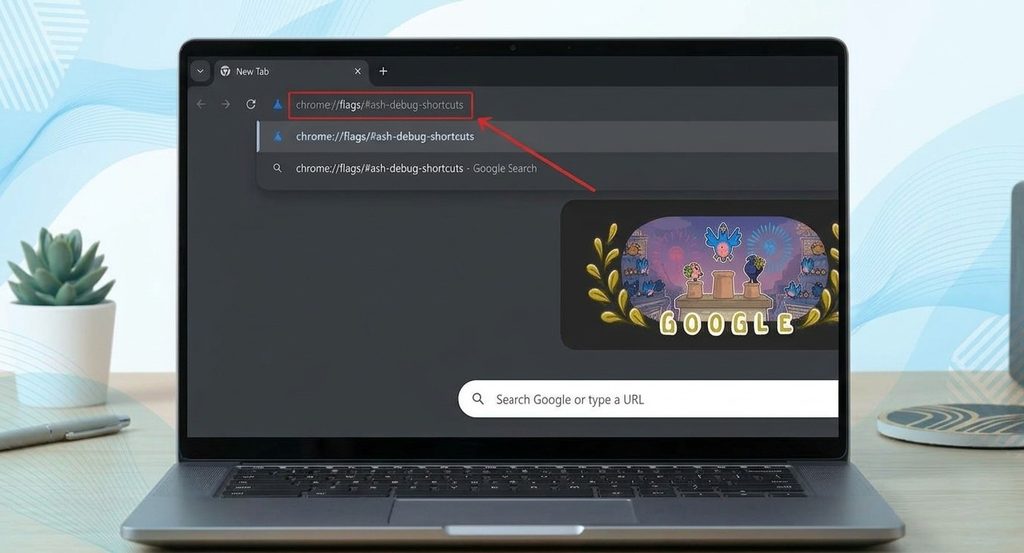
- In the Address Bar, Type Chrome://flags/#ash-debug-shortcuts and press Enter.
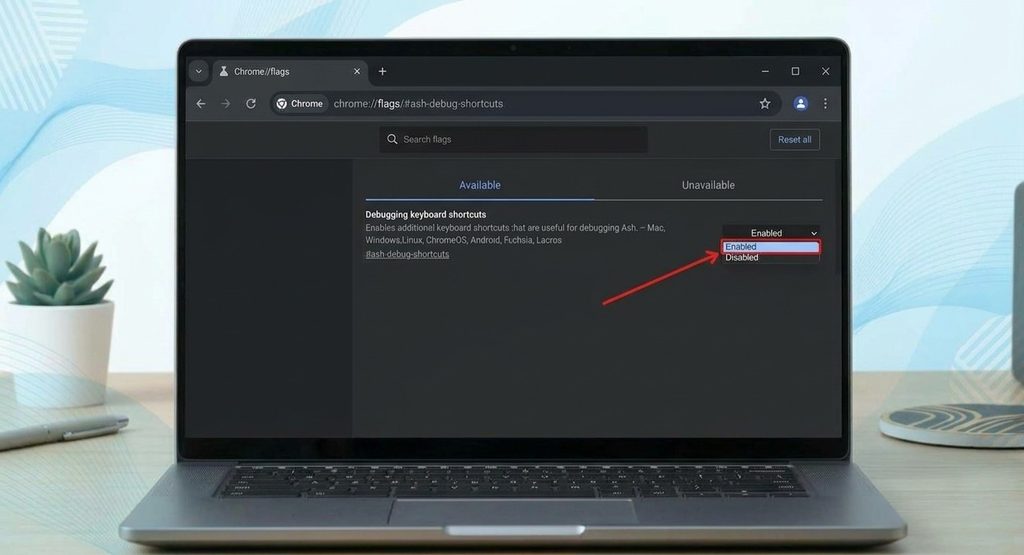
- Click on the Dropdown next to Debugging Keyboard Shortcuts and select ‘Enabled’.
- Click Restart at Bottom Right.
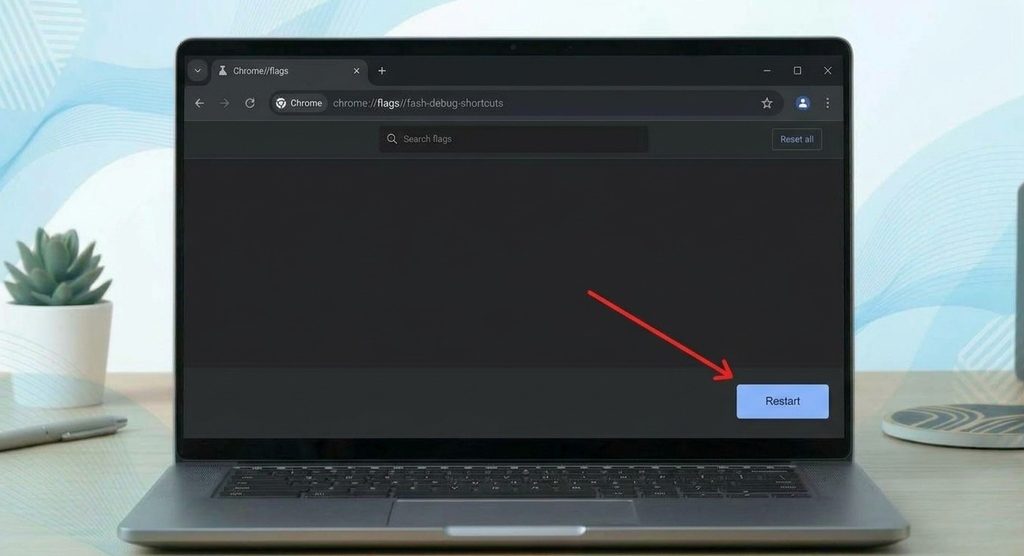
- Wait for your Chromebook to Restart.
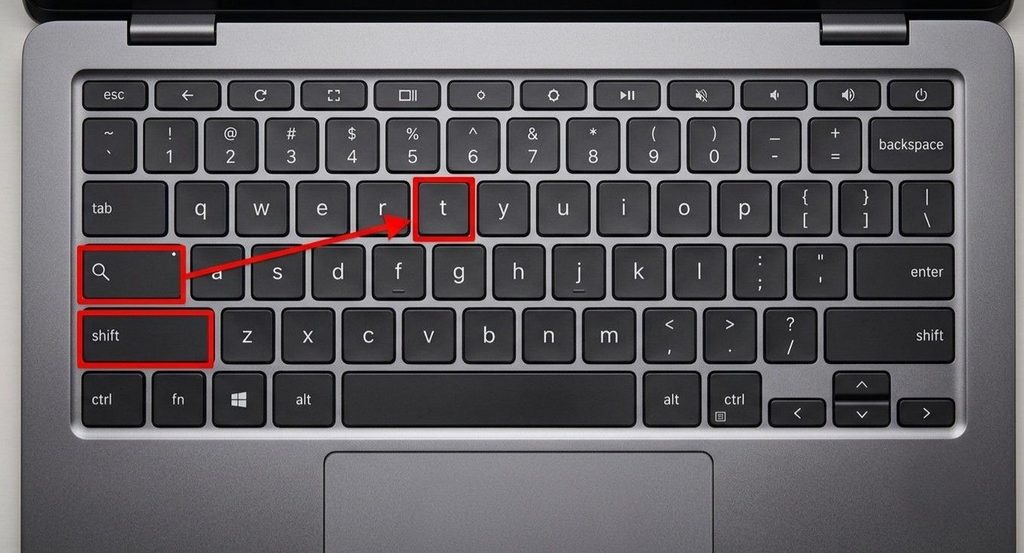
- Now Press Shift + Search + T All Together on Keyboard to Disable Touch Screen.
That’s it! Upon enabling ‘Debugging Keyboard Shortcuts’ through ‘ chrome://flags ’ Settings, Press Shift + Search + T keys together and touchscreen on Chromebook goes deactivated. Press Shift + Search + T again on the keyboard to re-enable the Touchscreen.
Read More : How to Turn On or Off RCS Chat Features on Android Phone
How to Disable Touchscreen on Chromebook Without Flags
You don’t need to have Chrome installed to switch off your Chromebooks touchscreen. Note that this may not work on all Chromebooks, however. And users who can access and use the developer mode should use only this way.
Here is How to Disable the Touchscreen on your Chromebook without the Use of Chrome flags:
Want to turn off the touchscreen on your Chromebook without using Chrome flags? You can do it with a simple command in the Terminal. Follow the steps below.
Warning: Enabling Developer Mode erases all local data on your Chromebook and reduces its security. Back up your files before you start.
Step 1: Enable Developer Mode
First, switch on Chrome OS Developer Mode on your Chromebook.
Step 2: Open the Terminal (Crosh)
Press Ctrl + Alt + T at the same time to launch the Terminal (Crosh).
Step 3: Enter the Shell
Type the following command and press Enter to access the Linux command line:
shellStep 4: List All Input Devices
Type the command below and press Enter. It shows all input devices, including your keyboard, mouse, and touchscreen.
xinput listStep 5: Find the Touchscreen ID
Look for your touchscreen in the list (it is usually named “touchscreen” or uses the manufacturer’s name) and note down its ID number.
Step 6: Disable the Touchscreen
Run the following command, replacing [device-id] with the ID you noted earlier:
xinput disable [device-id]Alternatively, you can use this command:
xinput set-prop [device-id] "Device Enabled" 0How to Re-Enable the Touchscreen
To turn the touchscreen back on, run:
xinput enable [device-id]Important Notes
- This change is temporary. The touchscreen turns back on when you restart your Chromebook.
- This method may not work on newer Chromebooks that no longer use X11.
- Developer Mode wipes local data, so always back up first.
Now you know “How to Disable the Touchscreen on Chromebook” and lock it for a while, Just to turn it back on when you want. If you have any problem while following these steps just comment below we will react soon. Please share this Guide with your friends if you found it helpful.