

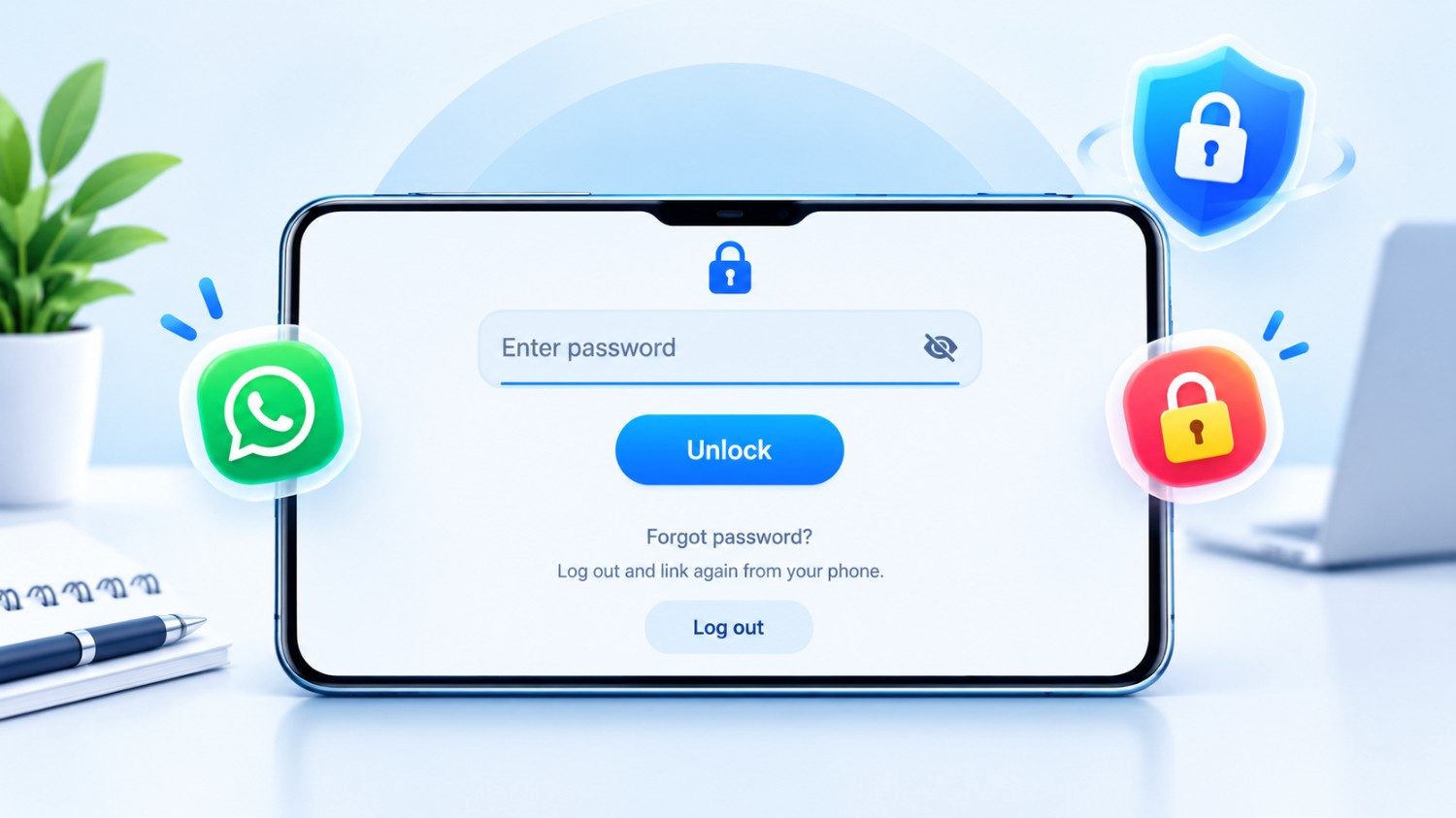
As they are quite intimate, it is best to keep the WhatsApp talks as hidden as possible. The WhatsApp mobile app features an in-app lock function to protect WhatsApp with a password, PIN, or fingerprint, but what about the desktop version?
No more worries! This native option is now accessible on WhatsApp Web and desktop app too, and it’s straightforward to set up. The app can be locked in both versions if you are using WhatsApp Web (web.whatsapp.com) or the WhatsApp desktop program.
In this article, I have published a step by step tutorial on how to lock WhatsApp Web with password in Windows computer or Mac. After you set a password, WhatsApp will automatically lock after these four time intervals.
- 1 Minute
- 15 Minutes
- 1 Hour
- 8 Hours
When you set the password, you can pick one of these time intervals, and WhatsApp will lock automatically after that time limit. But you can also lock WhatsApp manually and that too from the conversation menu whenever you want. Let’s see below how you may do this.
Read More : How to Use WhatsApp New AI-Generated Backgrounds to Personalize Video Calls.
How to Lock WhatsApp Web (Desktop) with Password on PC and Mac
Like I said previously, this feature is available on both WhatsApp Web and WhatsApp desktop client, therefore the way to set a password is the same for both. All the stages for this are discussed here with photographs.
- Open WhatsApp Web (Web.WhatsApp.com) or WhatsApp Desktop App on Your PC or Mac. (Login Not registered yet?)
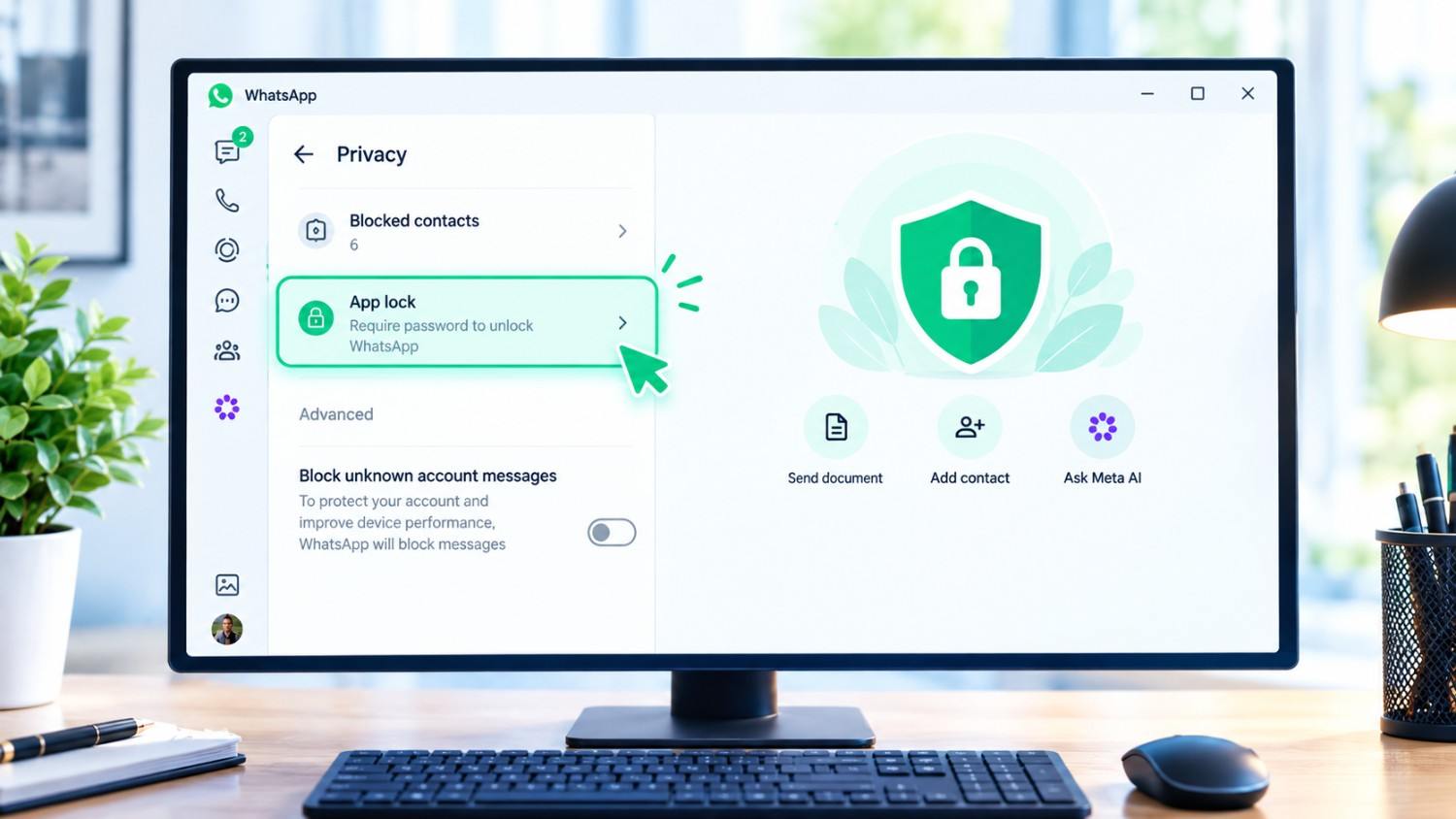
- Click on Profile Picture at Bottom Left Corner then Privacy.
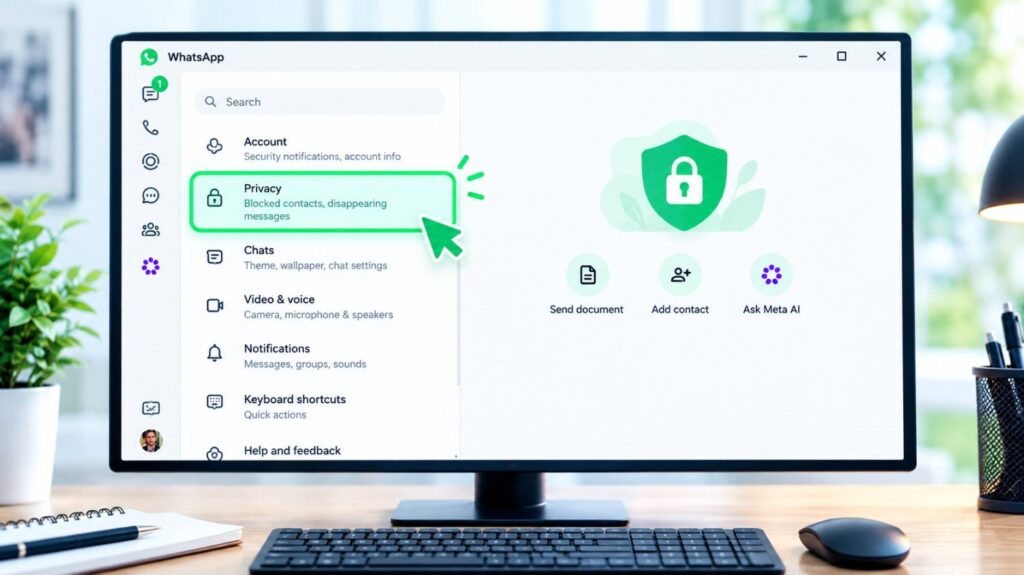
- Tap App Lock
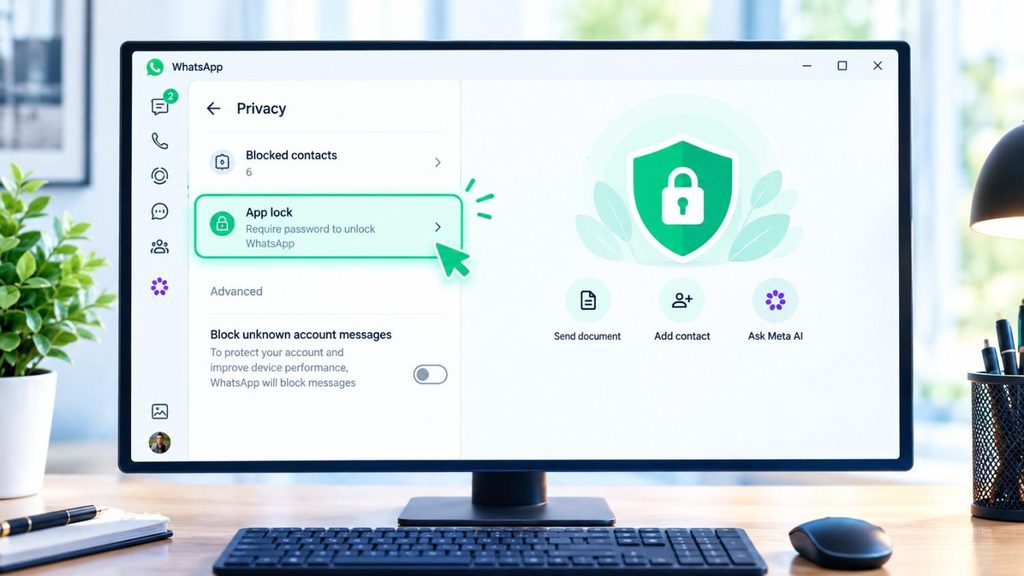
- That’s it, just switch on “Enable App Lock”.
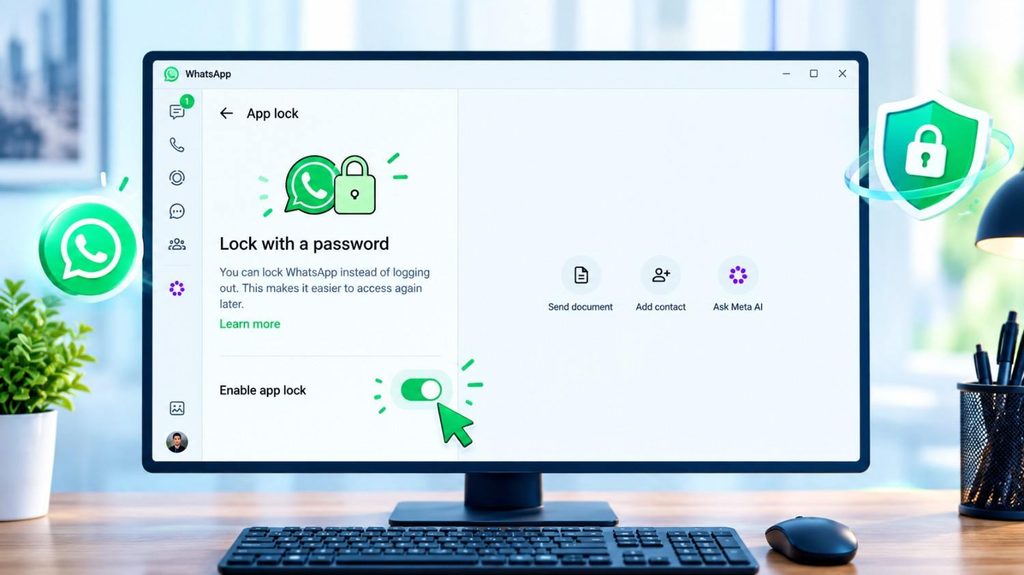
- Now set password and click on ok.
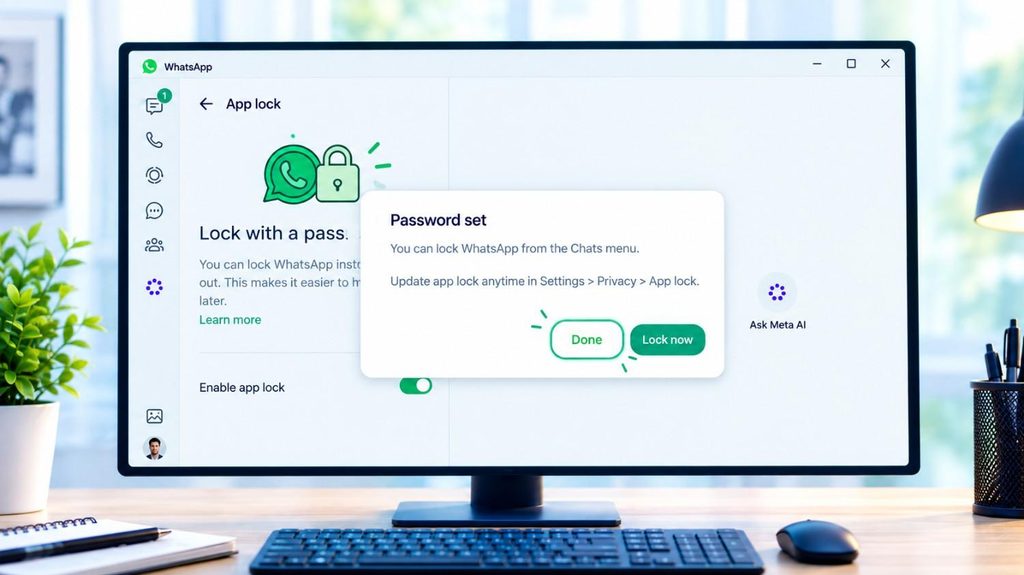
- Click Done Button to Close the popup.
- WhatsApp Web Will Auto Lock After 15 Minutes By Default. But you can pick one minute, one hour or eight hours.
Manually Lock WhatsApp Web
If you have auto-lock enabled on WhatsApp, but wish to lock it manually at once, you may do so too. In WhatsApp Web, go to the chat section and click on the three dots (⁝) and tap on ‘Lock App’. After tapping on the Lock app, your WhatsApp will be locked instantly, and you will have to input the password again to unlock it.
What if you forget your WhatsApp Web password?
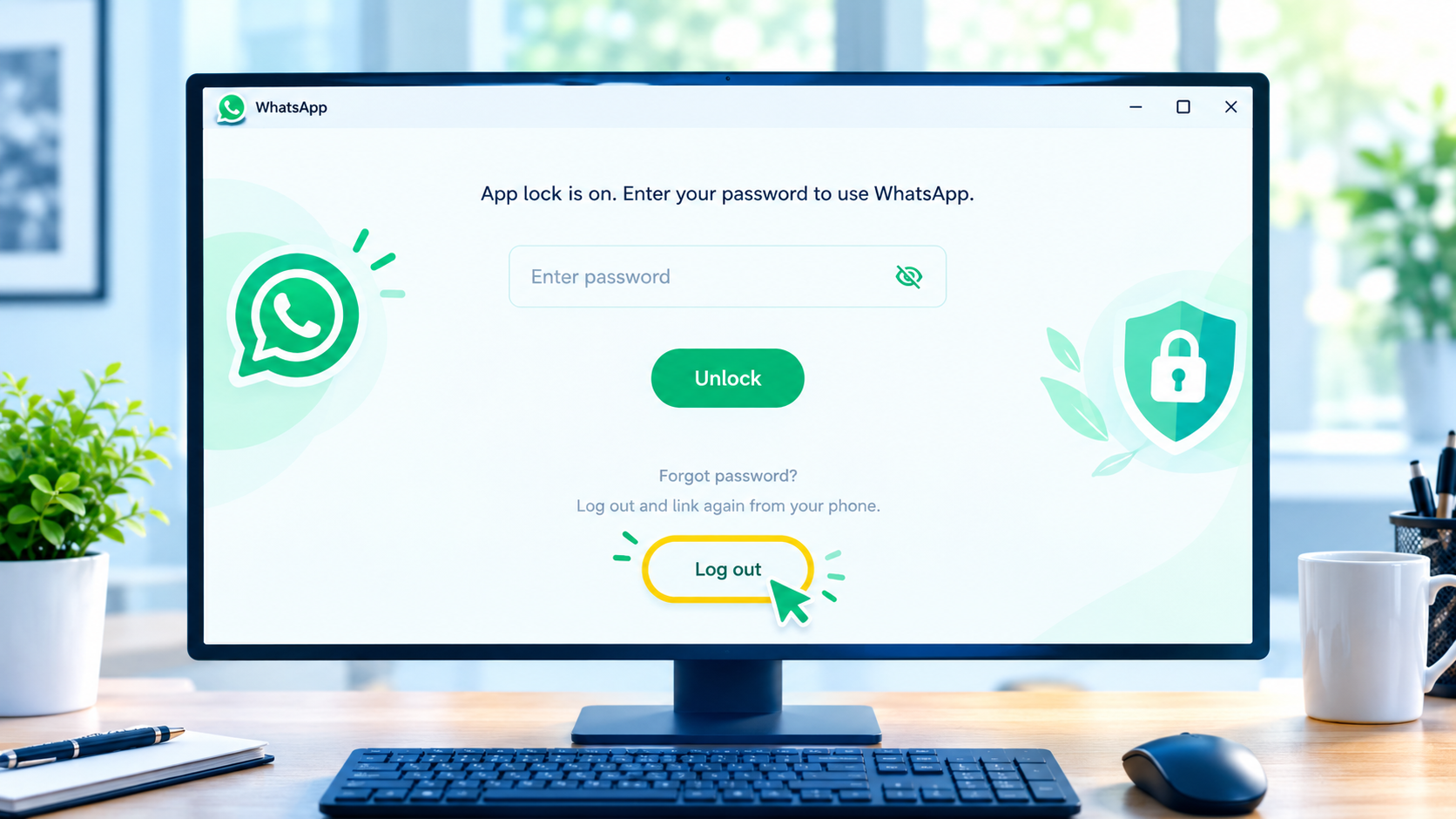
We forget the password many times, but I will tell you a trick to change the password of WhatsApp Web. All you need to do is logout of WhatsApp from your computer and then you may login with the QR code and make a new password.
Here’s what you should know when setting up a Password (App Lock) on WhatsApp Web:
- Go to web.whatsapp.com and Connect your phone.
- Click the three-dot menu at the top, and navigate to Settings → Privacy.
- Tap App lock (previously “Screen lock“) and Turn it on.
- Type and Confirm your Password, then choose how long WhatsApp Web can remain idle before it auto-locks.
What you need to know
- It is particular to the session. The password only applies to that one browser session – if you log out of WhatsApp Web completely, you’ll need to establish the App Lock password again the next time you link the device. It works because your browser stays logged in ( associated with your account ) until you log out . App Lock keeps you logged in , but you have to enter your password to unlock . (digitaltrends)
- It is not related to your computer login. The only thing the password protects is your WhatsApp Web session, so even if someone has access to your browser, they won’t be able to open your messages without it. Lock Whatsapp Web With Password – igeeksblog
- Notifications are hidden as well. When locked, no new-message notifications or message previews are displayed for content privacy on shared screens.
- Pick a strong, unique password 6128 characters, letters/numbers/punctuation — not something guessable.
- Your phone is just as important. WhatsApp Web is related to your mobile app so do make sure to lock your phone with a strong PIN or biometrics as well.
- Always log out from shared/public computers when you are done, don’t just rely on App Lock.
- Check active sessions on a regular basis in WhatsApp settings (Linked Devices) to see if there are any unfamiliar devices and remove them.
- Avoid third-party browser extensions that claim to add a WhatsApp Web password, as they demand broad permissions to read/modify the page and aren’t officially reviewed, therefore they come with serious security risk. Instead, opt for the built-in App Lock option.