
Apple
How to Connect and Forget Wi-Fi on Apple TV

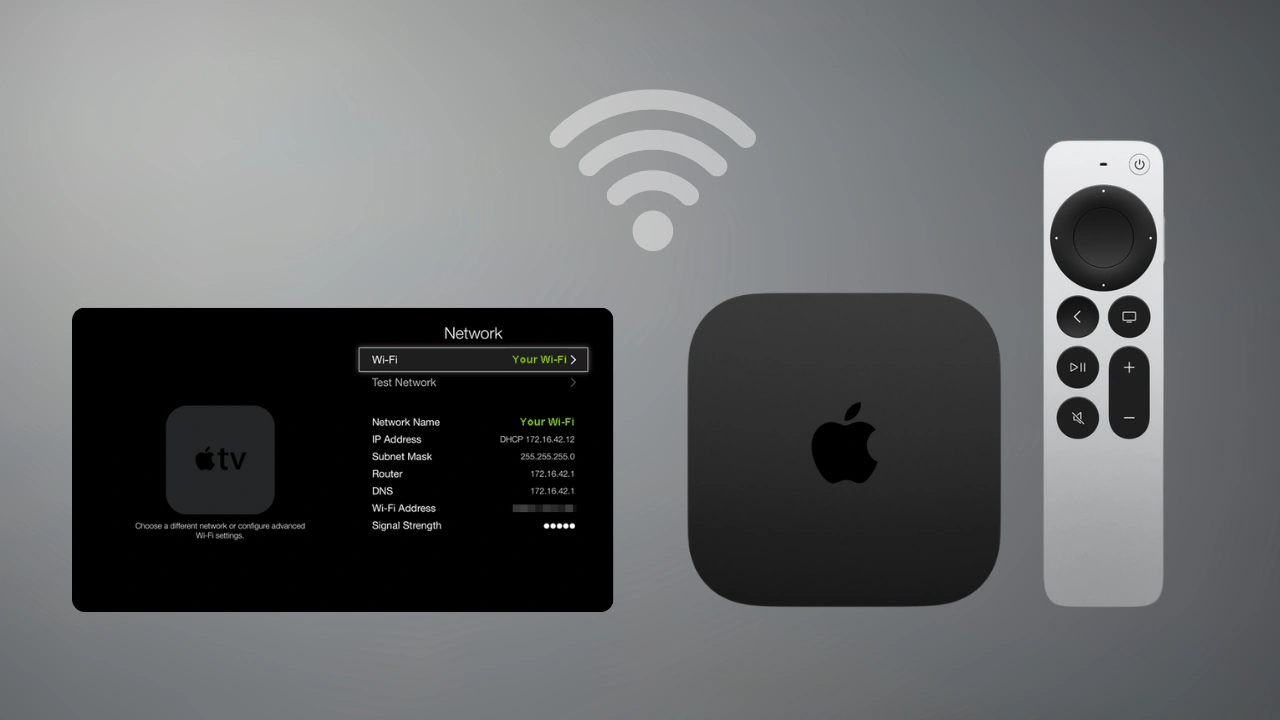
You’re not the only one experiencing internet problems with your Apple TV. A lot of the time, the culprit is just a stale or broken Wi-Fi connection — especially if you’ve recently swapped out your router or updated your Wi-Fi password. The good news? Forgetting the old network and jumping onto a new one (Connect and Forget Wi-Fi on Apple TV) is surprisingly quick to do once you know where to look.
Whether you’re dealing with constant buffering or your Apple TV just flatly refuses to connect, this guide walks you through the whole thing step by step.
Why You’d Want to Forget a Wi-Fi Network in the First Place
There are a handful of situations where this becomes necessary.
The most common one: you changed your router or updated your Wi-Fi password, and now your Apple TV is still trying to connect using the old details. It’ll keep failing every time because those saved credentials no longer work.
Another scenario is sluggish streaming — apps like Netflix or YouTube constantly buffering even though the rest of your house has fine internet. Outdated or corrupted network settings can quietly cause this, and a fresh connection often clears it right up.
And sometimes, it’s just a weird glitch. Forgetting and reconnecting to Wi-Fi is one of those “have you tried turning it off and on again” fixes that actually works more often than it should.
Read More: How to Turn Off Instagram Instants Feature
Before You Start — A Few Quick Checks
Nothing worse than getting halfway through a fix and realizing you don’t have what you need. So before you dive in:
- Have your Wi-Fi password ready — you’ll need to type it in.
- Make sure your router is actually on and working. Check it on your phone first.
- Your Apple TV should be somewhere with a decent signal — not buried in a cabinet across the house.
That’s really all you need.
How to Forget a Wi-Fi Network on Apple TV
Step 1. Open Settings
From the Apple TV home screen, grab your remote and head into the Settings app.
Step 2. Go to Network
Scroll down until you see Network and select it. Here, you may view details about your existing connection.
Step 3. Tap on Your Current Wi-Fi Network
Select the Wi-Fi network your Apple TV is currently using.
Step 4. Choose “Forget Network”
Hit Forget Network and confirm. That’s it — Apple TV wipes the saved details and drops the connection.
How to Connect to a New WiFi Network
Step 1: Go back to the Network Configuration
Go back to Settings > Network.
Step 2: Choose Your New Network
There will be a list of available networks. Choose the network you want to connect to.
Step 3: Type in the password
Use the on-screen keyboard to enter your Wi-Fi password. It will not connect if you type the wrong character, so be patient.
Step 4: Click “Done”
If you select Done, Apple TV will handle the rest. If the password is correct, you’ll be connected in a matter of seconds and ready to begin streaming again.
Still Not Connecting? Try These
If your Apple TV is still giving you trouble after all that, here are a few things worth trying:
- Restart your Apple TV — Settings > System > Restart.
- Reboot your router — unplug it, wait 30 seconds, plug it back in.
- Check for software updates under Settings > System > Software Updates. An outdated tvOS can cause weird connectivity issues.
- Move the Apple TV closer to your router if you can — walls and distance really do make a difference.
- Temporarily disconnect other devices from Wi-Fi to see if it’s a congestion issue.
Most of the time, one of these does the trick.
Conclusion
Forgetting and reconnecting to Wi-Fi isn’t the flashiest fix, but it genuinely solves a lot of Apple TV internet problems. If your connection’s been flaky or you’ve recently made any changes to your home network, it’s one of the first things you should try. Takes maybe five minutes and could save you a lot of frustration.
FAQs
Q.1. How to Reset Wi-Fi Settings Apple TV?
Answer- Go to Settings > Network > Select your current network > Forget Network. That clears saved connection details.
Q.2. Why is my Apple TV connected to Wi-Fi but not working?
Answer- This generally turns out to be router problems, poor signal or software upgrades. The quickest thing to try first is to reboot both the Apple TV and your router.
Q.3. Does Apple TV connect to hidden network?
Answer- Yes. Even if the network name and password aren’t listed, you can enter them manually from Network settings.
Q.4. If I forget a network do my apps or data get deleted?
Answer- No, definitely not. All it does is delete saved Wi-Fi credentials. Everything else remains exactly the same.